
How many times have you found out about a server issue from a user complaint rather than an alert? If the answer is “more than once,” your monitoring setup likely has gaps. Not because the tools don’t exist, but because effective Windows Server monitoring depends on knowing what to track, when to act, and why each metric matters. Default settings often aren’t enough.
A structured monitoring checklist helps you stay ahead of issues instead of reacting to them. Here’s what a solid Windows Server monitoring setup actually looks like.
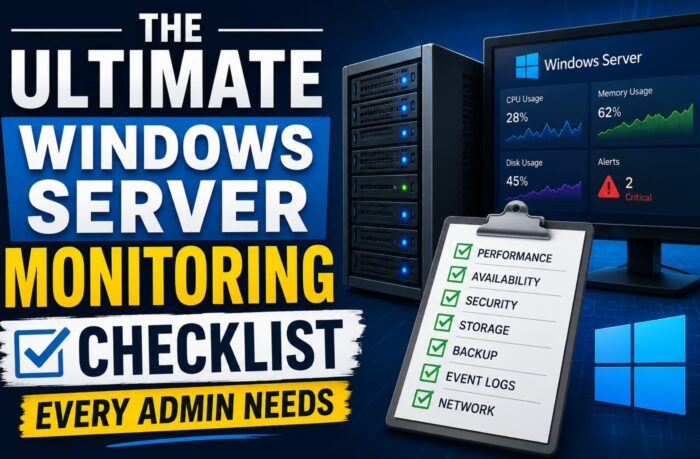
The Ultimate Windows Server Monitoring Checklist
1. Availability: The basics that get ignored
Before you dive into performance metrics, you need to know whether your servers are even online. A surprising number of teams only find out about a host going down when users start complaining. Beyond simple uptime, watch for:
- Host-down alerts: The moment your monitoring agent stops sending signals, you need to know.
- Unintentional reboots: Instances of Event ID 41 are a red flag for underlying hardware or OS issues.
- Pending reboot for Windows Update: An unpatched server waiting on a restart is a vulnerability sitting wide open.
2. CPU: Thresholds that actually mean something
A one-second spike to 100% is noise. Sustained high utilization is a problem. The right approach is a two-stage alert: warn at 90%, go critical at 95%. But processor utilization alone doesn’t tell the whole story:
- Processor queue length should generate an alert if >2 per core (this indiucates that tasks are piling up).
- Context switches per second should be flagged if >5,000.
- Interrupt time should stay under 10%.
One untested application update can quietly push all of these past their limits.
3. Memory: Don’t wait for the page file to explode
Memory issues are sneaky. The server could look fine until it suddenly doesn’t. Use a two-level alert—warning at 90% and critical at 95%—but also watch what’s happening beneath the surface:
- Page faults and memory pages per second above 1,000 means your server is leaning heavily on the page file. That’s disk I/O masquerading as a memory problem.
- Page reads per second above 10 is an early warning sign you’re running lean on RAM.
4. Disks: Because “storage is cheap” until it fills up
Disk failures are almost always preventable. Set alerts when free space drops below 20% (warning) and 10% (critical) on every volume, not just your C: drive. Beyond capacity:
- Disk queue length >2 per spindle sustained over 30 minutes means I/O is bottlenecked and it’s time to plan for capacity upgrades.
- Average disk latency above 10ms for reads or writes is worth flagging.
- VSS errors and backup failures should be captured in event log monitoring. A backup that silently fails is worse than no backup at all.
5. Network: Baselines matter more than absolute numbers
If your server is suddenly pushing three times its usual outbound bandwidth, that could be a misconfiguration, a runaway process, or something worse. Monitor throughput against your baseline, not a generic threshold. Also keep tabs on:
- NIC status, especially on multi-interface servers.
- Open port changes; as some ports need to stay up, while others should never be open.
- Latency and packet loss to key endpoints.
6. Services, processes, and applications
This is where generic monitoring falls apart. Watch for:
- Application availability across IIS, Active Directory, Exchange, Docker, .NET, and anything business-critical.
- Event ID 1002, which is Windows telling you an application has crashed or become frozen.
- Per-process metrics including CPU time, memory usage, handle count, and thread count.
- Scheduled task status; a task that silently fails every night is a ticking clock.
Tools like OpManager Nexus auto-discover applications, services, and processes on your Windows servers, so you’re not building this inventory by hand.
7. Security: Not a replacement for endpoint security, but it helps
Your monitoring tool isn’t an antivirus, but it can catch suspicious patterns early. Key things to watch:
- Event ID 5025: Tells you Windows Firewall has been disabled.
- Failed login attempts via Event IDs 4625, 4740, 644, and 4777: Set alerts at 3+ attempts to avoid noise from honest typos.
- Security software services: If your AV process stops running, you need to know immediately.
- SSL certificate expiry: Set alerts at least 30 days out.
- Pending security patches: Unpatched systems are low-hanging fruit.
Thresholds only work when they’re set with intent. A default 80% CPU alert sounds reasonable until your database server routinely runs at 78% under normal load and you’ve trained yourself to ignore every alert it sends.
The goal is to establish monitoring you actually trust. Manually tracking all of this is time-consuming and often unsustainable, especially as your infrastructure grows.
Tools like OpManager Nexus’s Windows Server Monitor covers all of this out of the box, including AI-powered dynamic thresholds through Zia AI that adapt to your server’s own behavior over time. The 30-day, free trial needs no credit card and no commitment.
Because the best time to fix a monitoring gap is before your server tells you it was there.

Leave a Reply