
Microsoft Configuration Manager (formerly SCCM) handles Windows and Microsoft application patches through Windows Server Update Services (WSUS) with minimal effort. Patch Tuesday arrives, the updates sync, automatic deployment rules push them to endpoints, and your compliance dashboard stays green. That workflow breaks down the moment you need to update Chrome, Adobe Acrobat Reader, Zoom, or any other non-Microsoft application.
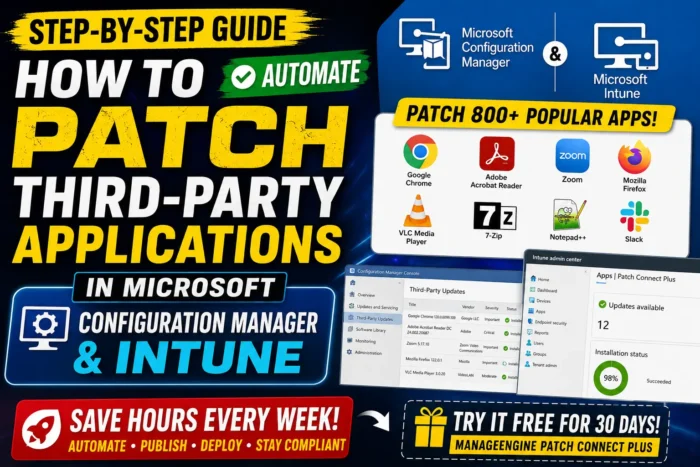
How to do Third-party patching for Microsoft Configuration Manager and Intune
Neither SCCM nor Microsoft Intune was built to track or distribute third-party updates. If you want to patch Firefox across 2,000 endpoints using SCCM alone, someone on your team has to download the installer from the vendor’s site, package it, test it in a pilot group, and create a deployment. Repeat that for every application, every time a new version drops. At 50 or more third-party applications in a typical enterprise environment, that manual cycle eats hours every week.
What SCCM offers natively for third-party updates
Starting with version 1806, SCCM introduced support for third-party update catalogs. This lets administrators subscribe to external catalogs, sync non-Microsoft patches through WSUS, and publish updates from within the console. Before 1806, the only option was System Center Updates Publisher, which required even more manual overhead.
The 1806 feature is a step forward, but it still leaves significant work on the admin side. Someone needs to locate the correct catalog URL from each vendor, subscribe to it individually, manage code-signing certificates for WSUS, and manually publish updates after each sync. For vendors that don’t provide a catalog at all, you’re back to downloading installers and packaging them by hand.
Microsoft Intune faces a similar limitation. It handles Microsoft 365 app updates and Windows feature updates natively, but third-party application patching requires manual application packaging or a third-party tool. For organizations running a hybrid setup with both SCCM and Intune, the gap doubles.
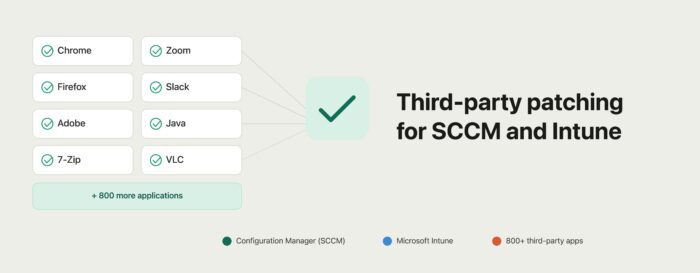
What a working third-party patching workflow actually requires
For third-party patching to work at scale in SCCM or Intune, several things need to happen without manual intervention. A central catalog has to track updates across hundreds of vendors and stay current as new versions release. A publishing mechanism has to sign update packages with valid certificates and push them to WSUS so SCCM can see them. The deployment itself needs to flow through SCCM’s existing automatic deployment rules, not a parallel process. And for Intune environments, there has to be a way to create and push application packages without hand-packaging each one.
None of that happens natively. The practical answer is a tool that sits between third-party vendors and your SCCM or Intune console, handling cataloging, signing, publishing, and sync automatically.
How ManageEngine Patch Connect Plus delivers this workflow
ManageEngine Patch Connect Plus is a third-party patching add-on built specifically for SCCM and Intune environments. It maintains a continuously updated catalog of over 800 third-party applications from vendors, handles the code-signing and WSUS publishing, and triggers SCCM synchronization on its own.
The installation runs on the same machine as your primary WSUS server, though a remote WSUS admin console setup also works. You configure three connections during setup: the WSUS server, the SCCM site server, and the SCCM SQL database. The service account needs membership in the WSUS Administrators and SMS Admins groups. Once configured, the product syncs with its central patch repository every 24 hours, downloads new binaries, signs them, publishes the packages to your WSUS content library, and triggers a WSUS-to-SCCM sync. The updates then appear in your SCCM console alongside Microsoft patches.
A native SCCM plug-in ships with the product. It adds third-party patch management and application deployment options directly inside the SCCM console, so your team works from a single interface.
Deploying updates through automatic deployment rules with ManageEngine Patch Connect Plus
Once third-party updates are published to WSUS, you deploy them the same way you handle Microsoft patches. If your team already uses automatic deployment rules in SCCM, you create them for third-party updates using the same process: Define the update criteria, set the deployment schedule, target device collections, and let SCCM handle distribution.
For deployments that need tighter control, Patch Connect Plus supports pre-deployment and post-deployment scripts. You can configure installation parameters, suppress user-facing notifications, force restarts, or skip the update if the application is currently running. Deployment templates let you standardize these settings across all third-party applications.
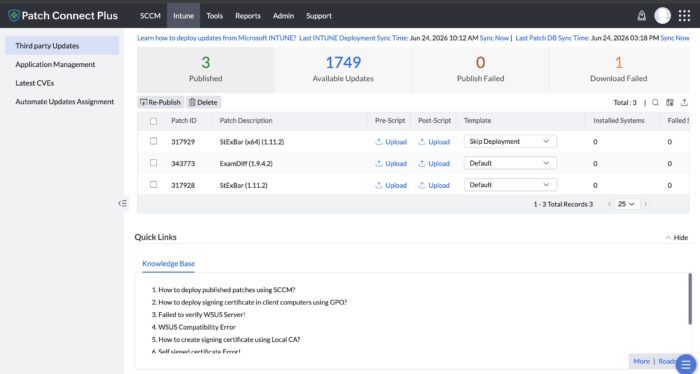
Patching third-party apps through Intune
The Enterprise edition of Patch Connect Plus extends the workflow to Microsoft Intune. It identifies third-party applications across Intune-managed devices and publishes updates directly, without the WSUS intermediary. When a vendor releases a new version of Chrome or Zoom, the product picks it up from its catalog, prepares the package, and makes it available in Intune. You control targeting and scheduling from the Intune console.
Tracking compliance and detecting new applications
Patch Connect Plus generates deployment reports that cover patch availability, installation status, and failure details, including error codes and remediation steps. These are accessible from within the SCCM console.
The product also runs automatic application detection. When a user installs software that the IT department did not provision, Patch Connect Plus flags it and begins tracking it for updates. In environments where shadow IT is common, this catches unmanaged applications before they become unpatched entry points.
Key takeaway
SCCM and Intune handle Microsoft patches well, but third-party patching requires tooling that neither platform provides out of the box. ManageEngine Patch Connect Plus plugs that gap directly into the consoles your team already uses.
A free, 30-day trial is available on the ManageEngine Patch Connect Plus website.
Research Author : Radha Krishnan
Radha Krishnan is a Product Marketing Specialist at ManageEngine, where he covers endpoint management and IT security solutions. He writes about the real-world patching challenges that IT administrators face and how the right tooling can close the gaps that native platforms leave behind.

Leave a Reply