
Microsoft Outlook uses PST files to store data of your important emails, contacts, and attachments. However, when the PST files become too large, they face issues like file corruption, and ScanPST.exe isn’t always enough to fix them. So if you have encountered a situation where ScanPST fails to repair a PST file, there is no need to panic, as there are a handful of fixes that you can try, such as Outlook PST repair tool.
Why does ScanPST.exe fail?
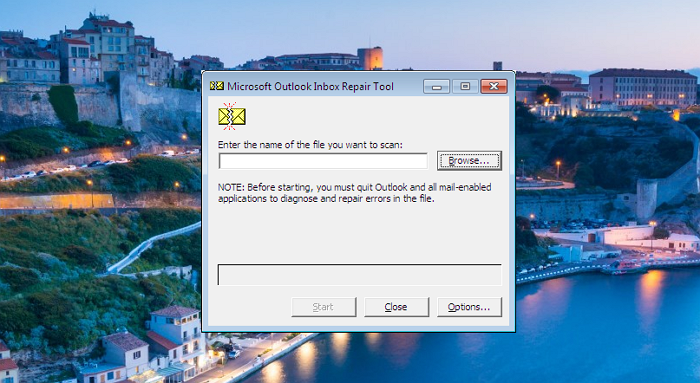
ScanPST.exe is Microsoft’s built-in inbox repair tool. However, it doesn’t do too well fixing most PST corruption issues.
For instance, ScanPST.exe often fails when the PST files become excessively large, as oversized files are far more prone to corruption than smaller ones. Also, it struggles with deep or structural damage. Another common issue is that there are too many missing, corrupted, or orphaned items.
However, ScanPST.exe can fix minor corruption in small PST files. It can also restore folder structure and some emails.
How to repair Large PST Files when Scanpst.exe fails
1] Try creating a new PST and moving items (If possible)
The easiest option is to create a new PST and move your items there if possible. If ScanPST.exe only manages to partially repair the file, you may notice a special “Lost and Found” folder in Outlook. This folder will typically contain all your recovered items that the tool couldn’t place back into their original structure.
To fix this, you will need to create a new PST file and drag the contents of the Lost and Found folder into it. However, it doesn’t guarantee that your issue will be fully fixed or that everything will be restored, but it will definitely help you recover some of the data.
2] Use a professional Outlook PST repair tool
In case ScanPST.exe fails to recover your data, it would be better to use a dedicated Outlook PST repair tool. Most of these tools are capable of handling large PST files (even 50GB+) and can recover files that are severely corrupted. They will help you recover your emails, attachments, contacts, calendars, and more efficiently.
How a PST repair tool works:
- A PST repair tool will first start by deep scanning the corrupted PST file.
- Next, it will recover all mailbox items, including those ScanPST.exe misses.
- Finally, it saves the recovered data to a new, healthy PST file that you can open in Outlook.
Popular PST repair tools
Now you might be thinking, which PST tool should I try? Here are a few popular options:
- Stellar Repair for Outlook: One of the most widely trusted PST repair tools, it can efficiently recover emails, attachments, contacts, and more from severely corrupted or oversized PST files. It also gives you the option to save data into multiple formats.
- Kernel for Outlook PST Repair: Another well-known tool, popular for its speed and accuracy. It can repair damaged PST files of any size and restores the full mailbox hierarchy, including folders, calendars, and tasks.
- SysTools Outlook Recovery: A user-friendly solution that scans and recovers data from corrupt PST files. It also offers features like selective recovery and the ability to export directly into new PSTs.
All of these tools are very user-friendly, and you can get started with them right away. Simply select your corrupted PST file, scan it, preview the recoverable data, and save it into a new PST file.
3] Steps to repair a large PST File with a professional tool
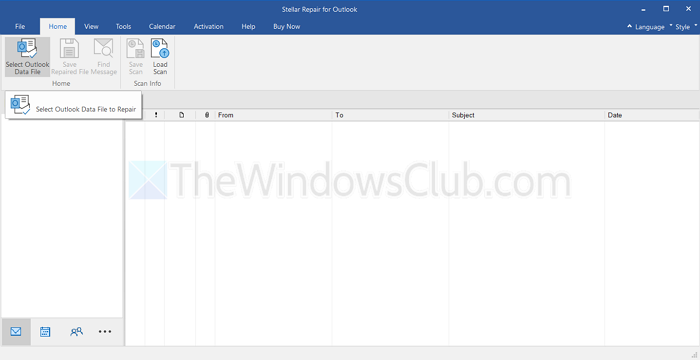
- Start by downloading and installing a reputable PST repair tool (for this tutorial, we have selected Stellar Repair for Outlook).
- Once you install the tool, it will ask you to select the data file you want to recover.
- Next, the tool will scan the file, analyze it, and display recoverable items.
- Preview and select the items you want to recover.
- Save the recovered data to a new PST file.
- Open the new PST in Outlook and verify that your data is restored.

Why use a professional PST repair tool?
You might prefer using Microsoft’s tool over any professional PST repair tool. However, if you have crucial data, a professional PST repair tool would be a great help.
As mentioned earlier, the built-in utility isn’t capable of handling large amounts of data or severely corrupted PST files.
By using a professional tool, you can recover emails, attachments, contacts, calendars, and tasks while preserving the original folder structure and formatting. Most of these tools are easy to use, require no technical expertise, save time, and ensure that all your crucial data is recovered.
Final Tips
Before you attempt your repair, here are some tips to consider:
- Make sure to back up your original PST file to prevent any accidental data loss.
- Avoid using unreliable or free online tools, as they can put your emails, contacts, and other data at risk.
- Once you have successfully recovered your mailbox, take preventive steps: split large PST files or archive older emails.
These practices help keep your Outlook data organized and reduce the chance of future corruption, ensuring your email workflow stays smooth and secure.
Summary
If ScanPST.exe fails to repair a large or severely corrupted PST file, you shouldn’t worry, as there are multiple options to help you recover your data. Since Microsoft’s built-in tool cannot always recover the data, another option is to choose a professional Outlook PST repair tool. Select a tool that suits your needs and can safely recover your emails, contacts, attachments, calendars, and other important data.

Leave a Reply