
As an Outlook user, you probably already know that it stores your mailbox data in two primary formats: PST and OST. Among the two, OST is one of the important files which is created when you configure Outlook with an Exchange, Microsoft 365, or IMAP account and it allows you to access emails, calendars, and other data offline.
As a result, when you encounter the OST file is inaccessible error, you can no longer open Outlook or access your emails. Plus, any unsynced changes stored locally will get lost.
The error typically occurs after a system crash, a sudden Outlook shutdown, or issues on the server side. However, fixing the issue is often straightforward, and we have outlined all possible solutions below.
What Is an OST File?
An OST (Offline Storage Table) file is basically a local copy of your mailbox data that Outlook creates when you use an Exchange, Microsoft 365, or IMAP account. The file allows you to access your emails, calendar, contacts, and tasks even when you’re offline. Additionally, any changes made offline, such as sending emails or editing calendar entries, are automatically synced with the server once you go online.
When you are online, Outlook syncs the OST file with your mailbox in real-time. As a result, you get the same information across devices while keeping an offline backup.
Apart from OST, there is also the PST (Personal Storage Table File). On one side, OST is tied to specific server accounts like Exchange or Microsoft 365 and it is used for offline access and syncing.
On the other side, PST is a manually created file for archiving or backing up Outlook data, and it is not linked to any live server for syncing.
Common Error Messages Related to OST Inaccessibility
When Outlook fails to access the OST file, users may encounter multiple error messages, such as:
- Outlook data file (.ost) is not accessible: This error means that Outlook isn’t able to read or locate the OST file.
- Cannot open your default email folders: This indicates that Outlook cannot connect to the mailbox or the OST file is corrupted.
- The file is in use and cannot be accessed: This indicates that the OST file is locked by another process or Outlook wasn’t shut down properly.
- Outlook cannot open the set of folders: A generic message pointing to problems with the OST file or the Outlook profile configuration.
Causes of OST File Inaccessibility
Several reasons can cause the OST file to become inaccessible, such as:
- Corrupted OST file: There is a good chance that the OST file got corrupted or damaged due to disk errors.
- Improper Outlook shutdown or system crash: If Outlook or your Windows computer wasn’t shut down properly, it can also corrupt the OST file.
- Issues with Outlook profile: A corrupted or misconfigured Outlook profile can break the link between Outlook and the OST file.
- Synchronization problems with Exchange/Office 365: Server-side changes or interrupted sync processes can lead to access errors.
- Faulty add-ins or conflicting software: If you have recently added any third-party plugins, then it could be causing the issue. Also, other applications on your computer can interfere with Outlook processes.
- File permission errors or network issues: If you are in a corporate environment, then incorrect permissions or shared drive issues can block access.
- Antivirus/firewall blocking file access: Your antivirus or any other firewall program might be blocking the OST file.
- OST file locked by another process: If another program is using the OST file, then Outlook won’t be able to access it.
Fix OST File Is Inaccessible error in Outlook
1] Restart Outlook and the system
Start by simply rebooting Outlook or your Windows computer. This will help release the locked OST file, refresh Outlook’s connection, and fix any other temporary glitches that might be causing the error.
2] Open Outlook in Safe Mode and disable add-ins
Next, consider opening Outlook in Safe Mode and disabling any add-ins, as they could interfere with Outlook’s ability to access the OST file. And by opening Outlook in Safe Mode, you will isolate the app from any added extensions.
- First, press Windows Key + R to open Run.
- Type the following command and press Enter: Outlook.exe /safe
- Next, go to File > Options > Add-ins.
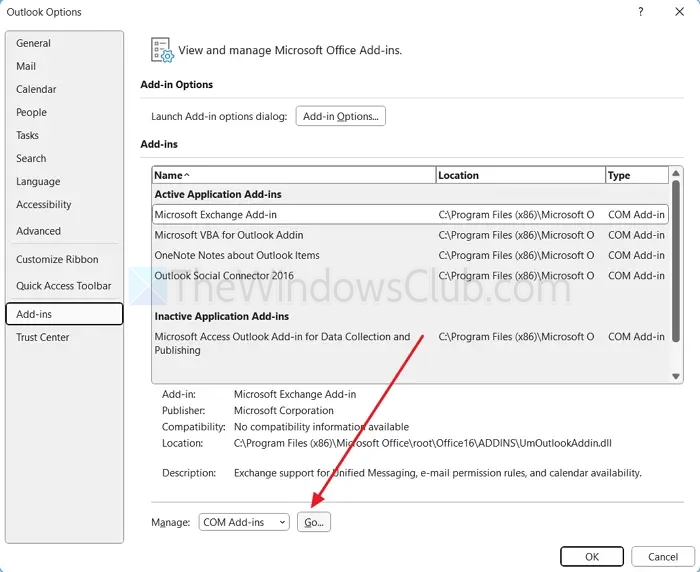
- At the bottom, choose COM Add-ins from the Manage dropdown, then click Go.
- Over here, uncheck all add-ins and click OK.
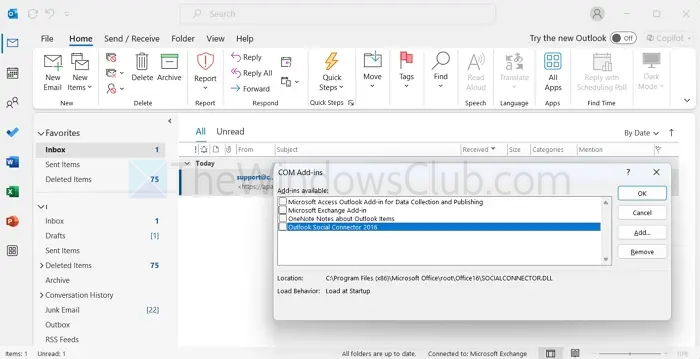
- Restart Outlook normally and see if it works.
- If it does, then re-enable add-ins one at a time to identify which add-in might be causing the trouble.
3] Create a new Outlook profile
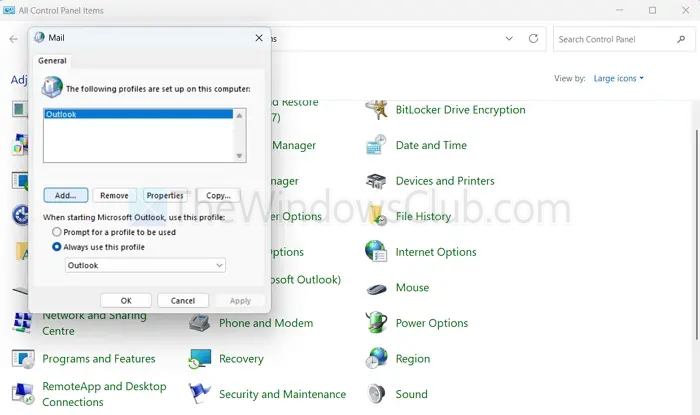
If your current profile is corrupted, creating a new one should help resolve the issue. For this, follow these steps:
- First, go to Windows search, type Control Panel, and launch it (make sure to set your Control Panel to View by: Large icons).
- Select Mail (Microsoft Outlook).
- Click Show Profiles > Add, enter a name, and click OK.
- Set up your email account when prompted.
- In the Mail window, select Always use this profile, choose the new one, then click Apply and OK.
- Finally, open Outlook and see if it fixed the issue.
4] Rebuild the OST file (delete and recreate)
If the OST file is corrupted and cannot be repaired, deleting it will force Outlook to generate a new version from the server. Additionally, since OST files are merely local caches, no server-side data will be lost.
- Close Outlook completely.
- Press Windows + R to open Run.
- Copy and paste the following and press Enter: %localappdata%\Microsoft\Outlook/Microsoft16
- Over here, locate the OST file for your account and delete it.
- Finally, restart Outlook, and it will automatically resync the OST file from the server.
5] Run Microsoft’s Inbox Repair Tool (ScanPST)
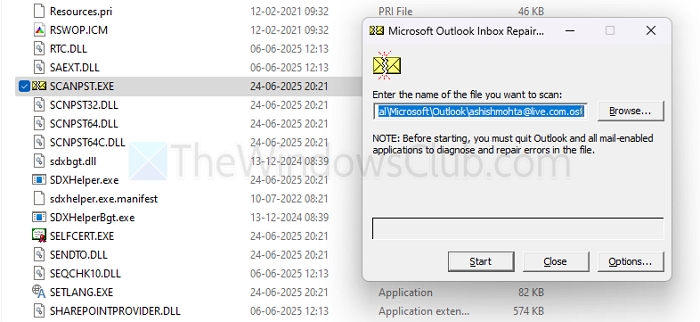
You should also try using the ScanPST tool, which helps fix minor corruption issues in Outlook data files.
- Close Outlook completely.
- Go to the following path: C:\Program Files\Microsoft Office\root\
- From here, open the Office folder, then find and run the ScanPST.exe file.
- Click Browse and locate the OST file from %localappdata%\Microsoft\Outlook, then click Start.
- Follow the onscreen steps to repair the file.
6] Check file/folder permissions
If Outlook doesn’t have permission to access the OST file or its folder, then it will not be able to load the file. To fix this, do the following:
- Go to this path using Run: %localappdata%\Microsoft\Outlook
- Right-click the OST file or folder and select Properties.
- Go to the Security tab.
- Ensure your Windows user account has Full Control or at least Read/Write access.
- If not, click Edit, then modify the permissions accordingly.
7] Exclude OST from antivirus scanning
Your antivirus application might be blocking Outlook’s access to the OST file. So ensure that the OST file is whitelisted on your antivirus or any other security program. The process for whitelisting an app or service varies from one security software to another, so it is recommended to check with the software you are using.
8] Use Microsoft Support and Recovery Assistant (SaRA)
Lastly, you can use Microsoft Support and Recovery Assistant, or SaRA for short. It is a free diagnostic tool that can automatically detect and fix Outlook profile, account, and data file issues.
- Start by downloading the tool from Microsoft’s official site.
- Next, run the tool and select Outlook > I’m having problems with Outlook.
- Finally, follow the onscreen steps and SaRA should automatically fix it for you.
Use Stellar Converter for OST (When other fixes fail)
If none of the manual methods work and your OST file remains inaccessible, Stellar Converter for OST is a trusted and efficient solution to convert outlook .ost to .pst and recover, access mailbox data.
Why OST files may become orphaned or unrecoverable
OST (Offline Storage Table) files can become orphaned or unrecoverable due to a variety of reasons related to changes in system, user profile, or server environment. One of the most common causes is the deletion, corruption, or disconnection of the associated Outlook profile or Exchange account.
When the profile is no longer recognized, the OST file may lose its link to the server and become inaccessible. Server-side changes, such as mailbox deletions or migrations, can also render OST files obsolete.
Additionally, file corruption resulting from hardware failure, abrupt shutdowns, or software conflicts can damage the OST file structure, rendering recovery impossible. Encryption and security policies may further prevent access if credentials or certificates are no longer valid.
Benefits of using Stellar Converter for OST:
- Convert Inaccessible or Orphaned OST Files
- Export OST Data to Multiple File Formats
- Maintain Original Mailbox Structure and Data Integrity
- Preview Mailbox Contents Before Final Conversion
- Efficient Handling of Large-Sized OST Files
- Auto-Split Large PST Files
- Simple and Intuitive User Interface for Easy Use
- Advanced Filters for Selective Data Conversion
- Broad Compatibility with Outlook and Windows Versions
How to convert ost to pst using the tool
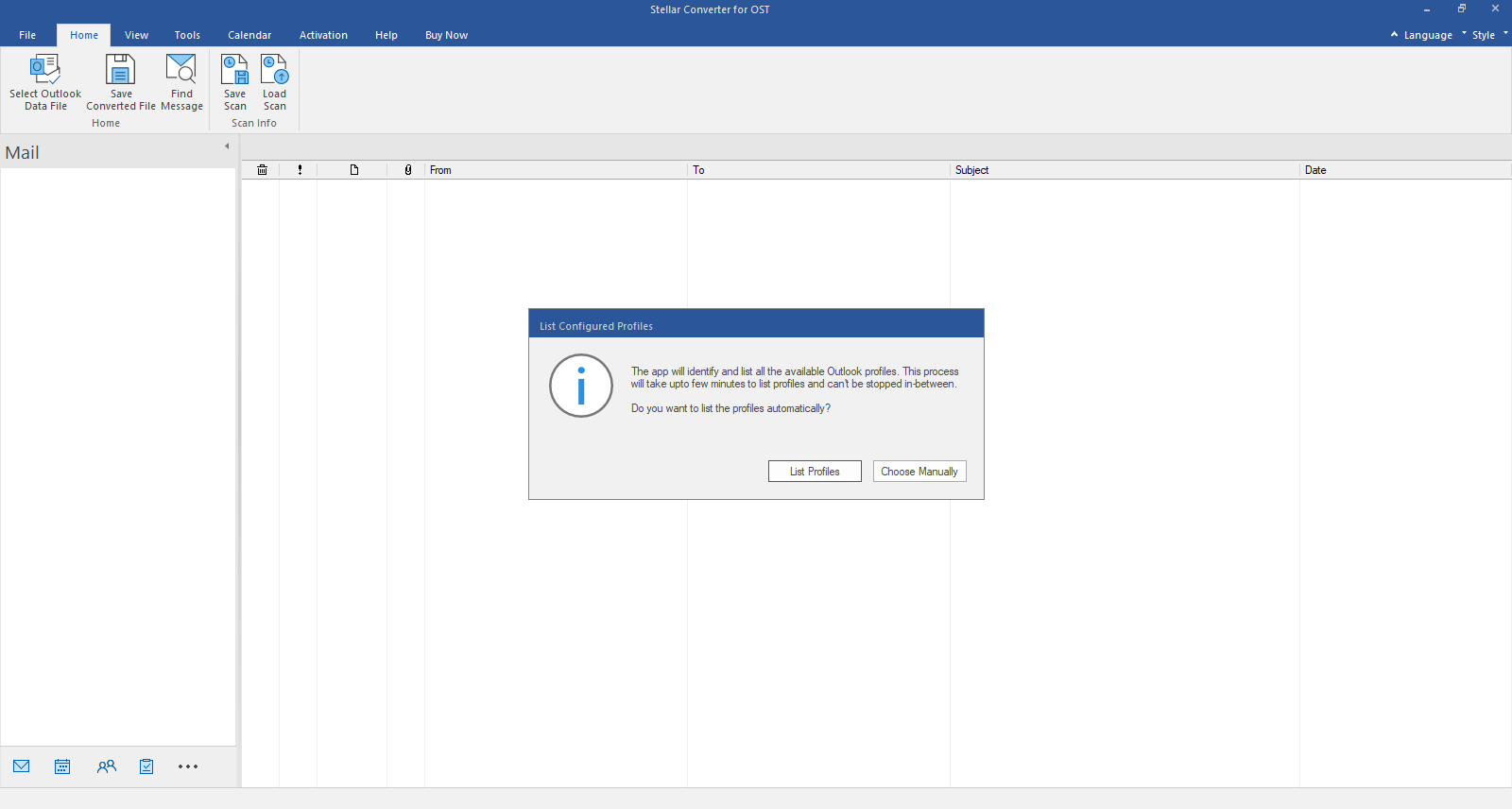
- Launch Stellar Converter for OST.
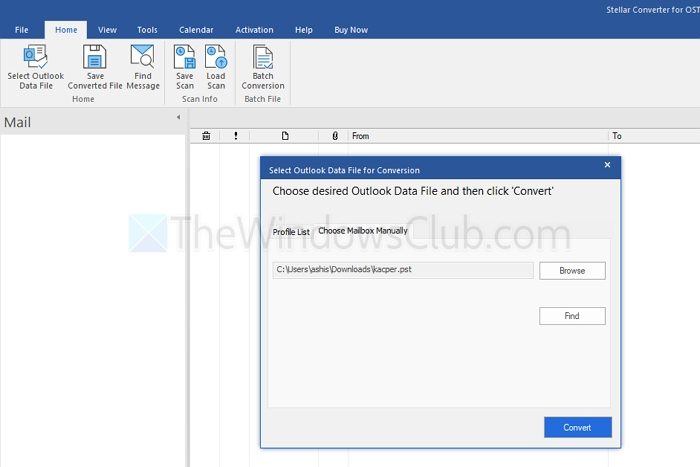
- Select List Profiles or Choose Manually option as per requirement to add Outlook Data File (.ost).
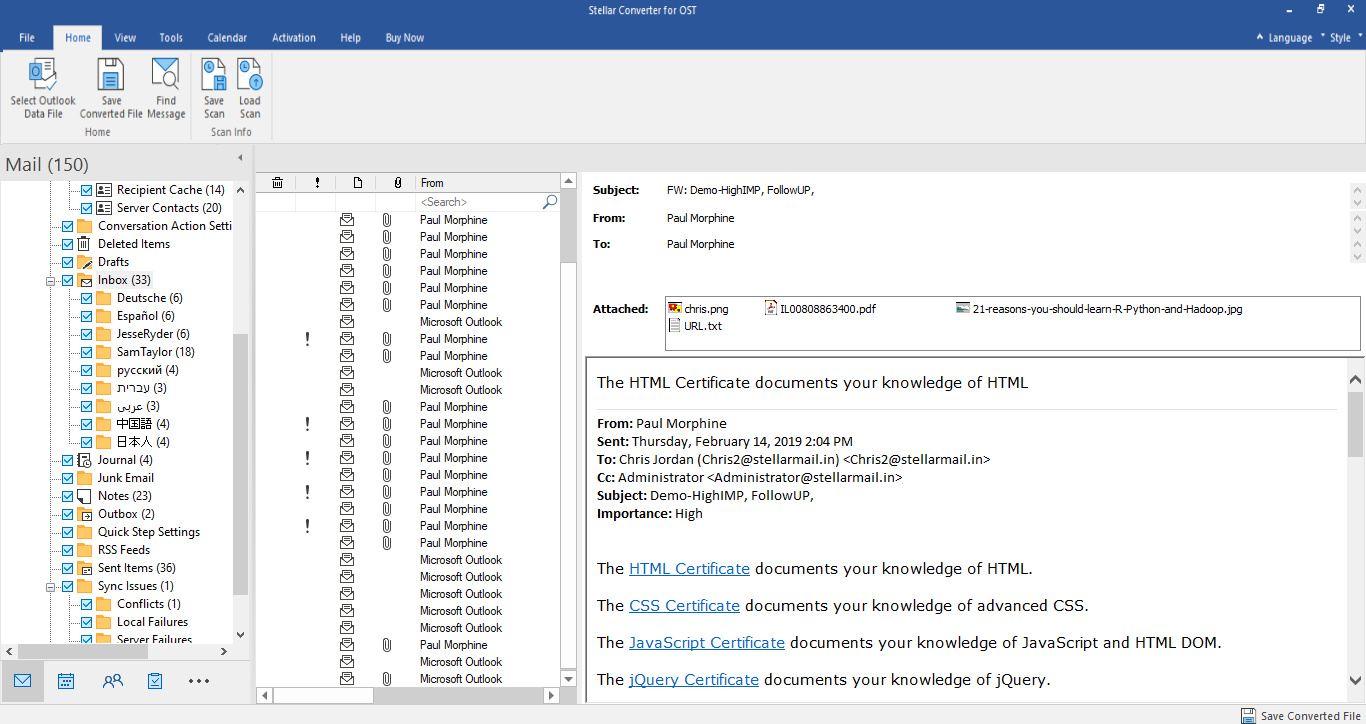
- The software displays a preview of the converted PST files in a three pane structure.
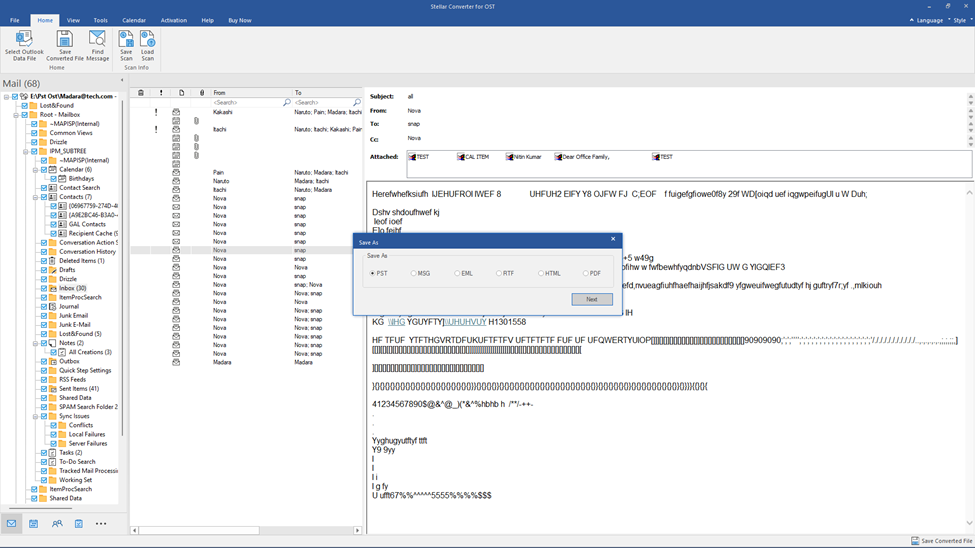
- Click Save Converted File button in the Home ribbon. Select the desired format and destination for the file. Click OK to save the file.
- Click on the Browse button to save the converted file at the specified destination. Check Recover Deleted Item box to recover deleted items. Check auto-split PST to Split the PST files into smaller files.
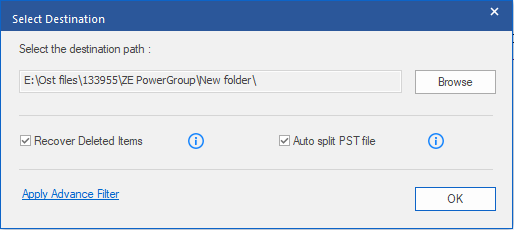
- Click OK on the Select Destination window to start the saving process.
Preventive Tips
To reduce the chances of encountering OST-related errors frequently, here are some preventive measures:
- Regular Outlook backups: Make sure to back up your important data to a PST file from time to time.
- Proper shutdown of Outlook and system: Make sure to close Outlook before shutting down your PC.
- Avoiding unstable or outdated add-ins: Only install trusted and up-to-date add-ins, and remove any add-ins that you no longer use or that are outdated.
- Keeping software and Windows updated: Make sure all Microsoft products like Outlook, Office, etc. are regularly updated.
Conclusion
The OST file is inaccessible error can occur due to various reasons. However, fixing the issue is fairly easy, and the above methods should work for you.
If the issue persists and you don’t want to lose your OST file, consider using a utility tool like Stellar Converter for OST. It safely converts inaccessible OST files into PST format, enabling you to access and manage your data without relying on Outlook.
You can download the free demo to preview the data before making a purchase decision.

Leave a Reply