
Imagine a scenario in an enterprise where an employee leaves the company, and their Microsoft 365 account is discontinued. The Exchange server is unavailable, but the emails need to be recovered. The only remaining trace of their mailbox is the OST file on their laptop. Or your Outlook profile may suddenly become corrupted after a system crash, leaving important emails, calendar events, and contacts completely inaccessible. If any of these scenarios happen, IT admins quickly realize the major limitation of the Outlook OST file. You cannot open the OST file directly in Microsoft Outlook if it is from a different account. To open an OST file in another Outlook profile, you need to convert it into a PST file. In such a case, reliable software comes in handy. This article reviews Stellar Converter for OST, the best OST to PST converter tool.
Why are OST files difficult to work with?
The OST file is bound to the original Microsoft Outlook profile or Exchange/Microsoft 365 account that created it. That’s why you can’t open these files normally like PST files. If the Outlook profile gets corrupted, the linked OST file becomes orphaned. This creates locked data: the emails remain available locally on the disk but cannot be accessed without active server synchronization. To regain access to your email data, you need to convert the OST file to a PST file. You can import the PST file into any client and any Outlook profile.
Stellar Converter for OST review: The best OST to PST converter tool
Since you can open a PST file in any Outlook profile or Outlook account, you need an OST to PST converter tool. In this guide, we will explore how to recover your email data using an OST to PST Online Converter tool and Stellar Converter for OST. They are available as an online converter tool and a desktop version, respectively.
Stellar Online OST to PST Converter
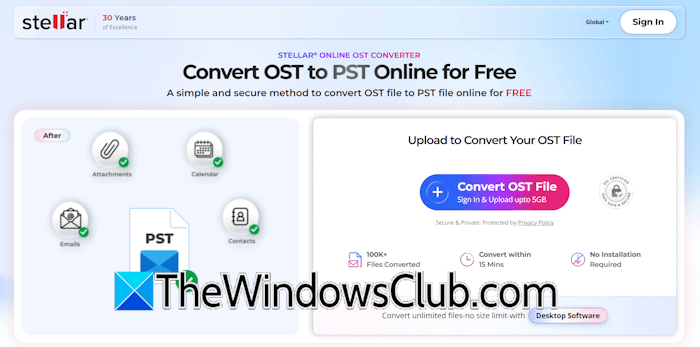
Stellar Online OST Converter offers a simple, secure way to convert an OST file to a PST file for free. You can access this tool on the official Stellar website. After visiting the website, you will see the interface shown in the image above. To get started, sign in using your email. After that, click the Convert OST File button and select the OST file from your computer to upload it.
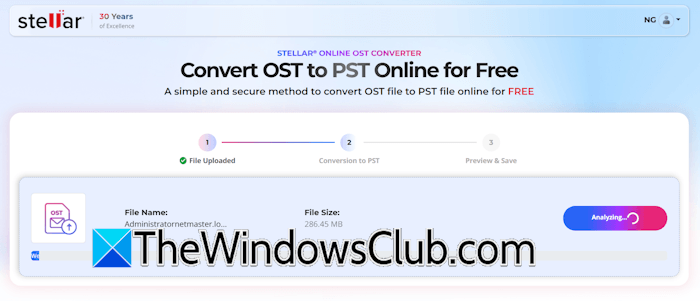
After uploading the file, click on the Convert button to start the conversion. The time it takes the tool to upload the OST file to the server depends on the file size and your internet connection speed. The conversion time also depends on the size of the OST file you upload. The online tool is available in free and paid plans. The free version lets you convert OST files up to 500 MB. To convert an OST file larger than 500 MB, you need to purchase the Premium version. The converted file remains available on the server for 24 hours on the free plan and 48 hours on the paid plan. So you must download the file before it’s deleted.
The online tool has the following benefits:
- Browser-based tool
- No installation is required
- No Outlook is required
- Quick file conversion. The conversion is usually fast. However, the speed of upload and conversion also depends on your internet connection speed and OST file size.
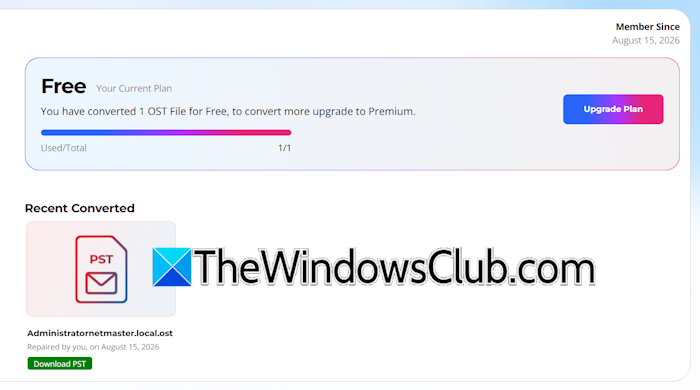
This online tool is best for non-tech users who need quick mailbox access without installing OST-to-PST converter software. It works best for small OST files and lets you convert a single file with a single account. After conversion, you can download the PST file. Another limitation of this online tool is that you cannot preview the OST file before conversion.
Stellar Converter for OST for Windows desktop
The online converter works well for quick conversions. However, IT administrators often deal with larger mailboxes, multiple OST files, compliance requirements, mailbox verification, and data recovery scenarios. That’s where the desktop solution becomes more practical. Stellar Converter for OST is an OST to PST converter tool for Windows. You can download it from the official website. The Desktop version has no file size limit. Converted files remain on your system until you delete them.
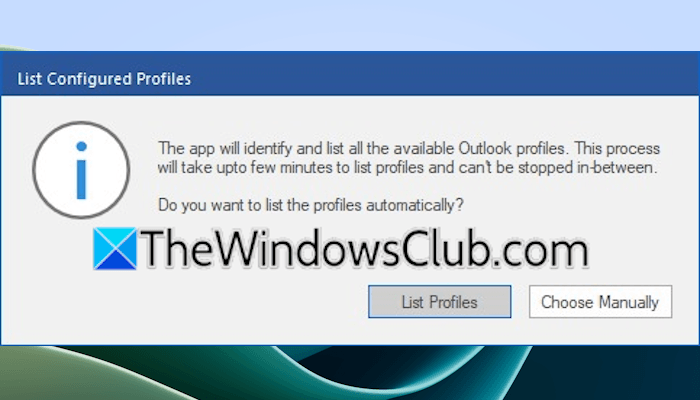
The software can find the OST files located on your system. As you launch it, it shows a message to list the configured profiles. If you select the List Profiles option, it shows you all the Outlook data files for your Outlook profiles. Select the one you want to convert. If the software does not detect the required OST file, you can select it manually by clicking the Choose Manually option. Alternatively, navigate to Home > Select Outlook Data File > Choose Mailbox Manually. Now, click Browse to select the OST file on your system.
Features of Stellar Converter for OST
Let’s discuss the important features of Stellar Converter for OST software for Windows.
- Preview before saving
- Selective conversion
- Large OST support
- Maintains folder structure
- Deleted Mail recovery
- Save the scan
1] Preview before saving
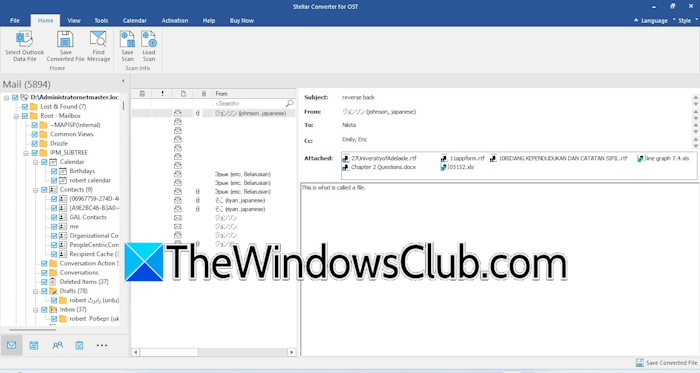
The software shows a preview before saving. To convert an OST file, navigate to Home > Select Outlook Data File > Choose Mailbox Manually. After that, select the OST file from your system. As you open the OST file, the software automatically starts converting it to PST. After converting, it shows its preview, so you can view its contents before saving. The preview feature lets you verify the mailbox contents before exporting. The deleted emails are shown in Red.
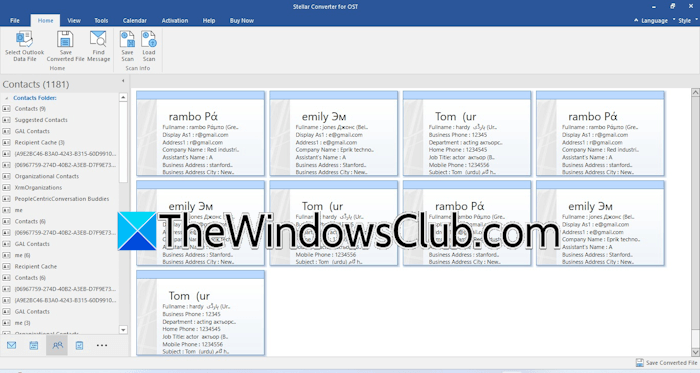
You can also preview the calendars, tasks, contacts, and notes.
2] Selective conversion
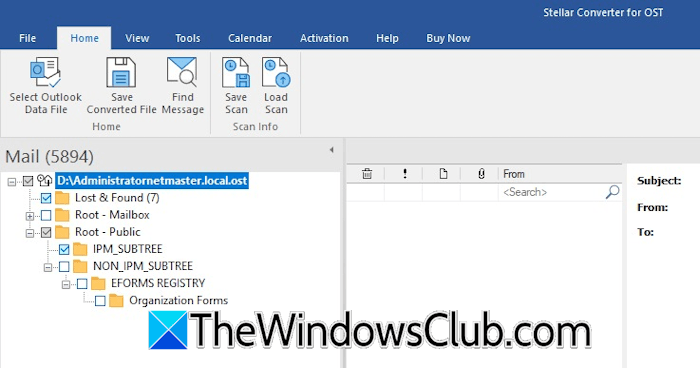
The software also supports selective conversion. This means you can save only the selected folders of the OST file to a PST file. To do this, uncheck the checkboxes you don’t want in the PST file. When you are done, save the PST file. This feature is usually helpful when the OST file is huge, as it saves both time and storage.
3] Large OST support
Stellar Converter for OST software supports large OST files. There is no file size limit, allowing you to convert huge OST files into PST. However, conversion of huge OST files takes more time. This feature is useful for enterprise mailboxes.
4] Maintains folder structure
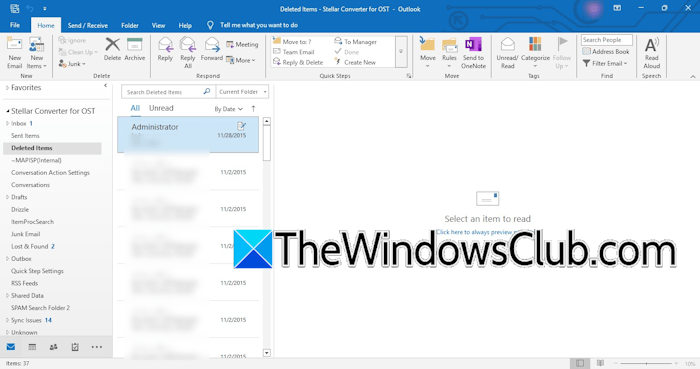
The best part of the software is that it maintains the folder structure in the Outlook PST file after conversion. The folder structure is also maintained even if you save only the selective folders. When I opened the PST file in Outlook after converting it, all the folders were in proper structure (refer to the image above). The exported contacts were displayed in the Contacts section in Microsoft Outlook.
5] Deleted mail recovery
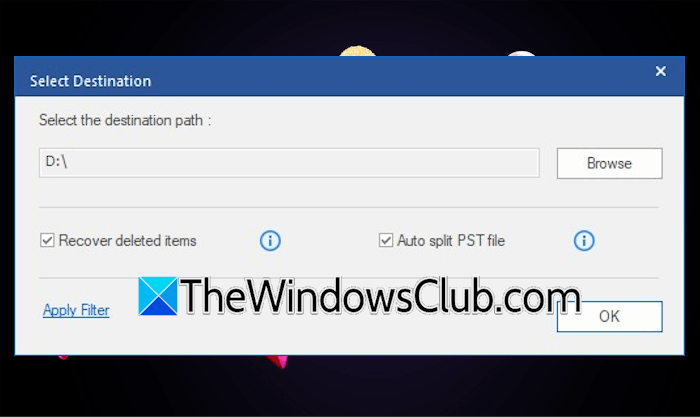
The software can also recover deleted emails. For this, you have to select the Recover deleted items checkbox while saving the PST file.
6] Save the scan
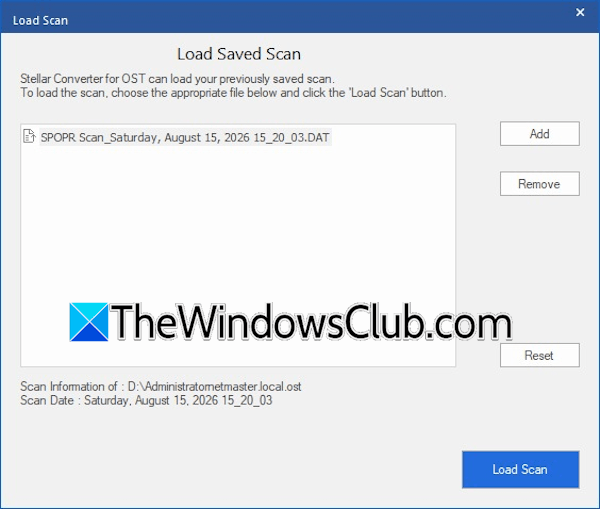
The software also lets you save the scan. This feature is very helpful. For example, you can save the selected folders to a PST file and close the software after saving the scan. The next time, if you want to save other folders from the same OST file, you can load the saved scan instead of scanning the same OST file again.
Stellar Online Converter vs. Desktop Edition
| Online Converter | Desktop Converter |
| Quick conversion | Advanced recovery options |
| Browser-based (no installation is required) | Installation is required |
| Ideal for small jobs, startups, or home users | Suitable for large Enterprises |
| Suitable for basic requirements | Suitable for advanced requirements |
| No preview | Shows full preview before saving the file |
| No option to select folders manually | Selective conversion |
| Saves files only in PST format | Can save files in multiple formats |
| Size limit | No size limit for conversion |
| Converted file deleted after 24 to 48 hours from the server | Can save the scan |
Who should use the Stellar online tool?
The online tool allows one-time conversion. Therefore, it suits Home Office users with small OST files.
Who should use the Stellar Desktop tool?
The Desktop tool offers many advanced features, such as preview before saving the PST file, advanced recovery options, deleted email recovery, multiple formats to save the converted file, a save scan feature, and more. Therefore, it suits MSPs, IT administrators, Exchange admins, Microsoft 365 admins, consultants, legal/compliance teams, and large mailbox users.
For pricing and other information, visit their official website.
Conclusion
Both Stellar solutions offer practical ways to convert OST files to PST, but they suit different needs. The Stellar Online OST to PST Converter is a convenient choice for users who need a quick, one-time conversion and prefer a browser-based solution without installing software. It’s particularly useful for smaller OST files.
For larger OST files or more advanced conversion requirements, Stellar Converter for OST desktop software offers greater flexibility. During testing, features such as mailbox preview, selective conversion, folder-structure preservation, deleted-item recovery, and saved scan data make the desktop software better suited for users who need more control over the conversion process.
Overall, the choice depends on the user’s requirements. The online OST to PST converter suits simple, quick conversions, while the desktop OST to PST converter is better for larger OST files or when you need additional mailbox management and conversion features. Based on my testing, the desktop version provided a more comprehensive conversion experience and greater control over the resulting PST file.
