
An Outlook PST file is a single container holding years of email, contacts, calendar entries, tasks, and attachments. It is also fragile. A mid-sync power loss, a mailbox that pushes past Outlook’s size limit, or a failing drive sector can leave you staring at “File in use” or “Not recognized as a personal folder file” with no obvious way back in.
The built-in Inbox Repair Tool (scanpst.exe) is Microsoft’s fix for surface-level corruption. It works when the damage is minor and the file is small. It tends to stall or give up on anything larger or more severely damaged.
Stellar sells two tools that pick up where scanpst.exe leaves off:
- Online PST Repair by Stellar — repairs your file through the browser, no install.
- Stellar Repair for Outlook — a Windows desktop application.
They share the same repair engine, but the delivery, limits, editions, and workflow are different enough that treating them as one tool obscures what you’re actually choosing between. For this review I tested each on its own, then put them side by side. Here’s what held up.
Stellar Online PST Repair: the browser-based option
There is simple to use the online Outlook PST repair service. There is nothing to download.
The process, start to finish
You land on a page with one main call to action: Repair PST File. Sign in or create an account,
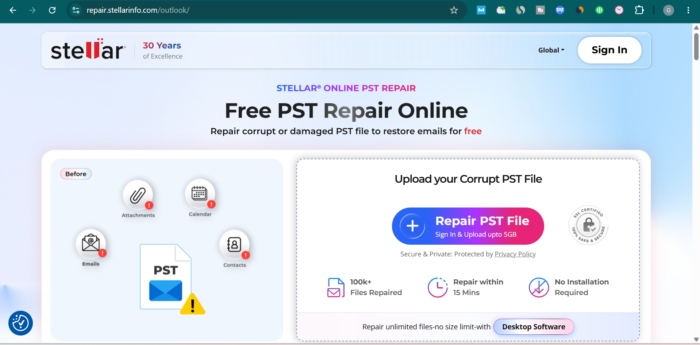
And you’re taken straight to the upload screen. Pick your corrupted PST from disk and start the upload. The whole flow is four clicks and a file picker.
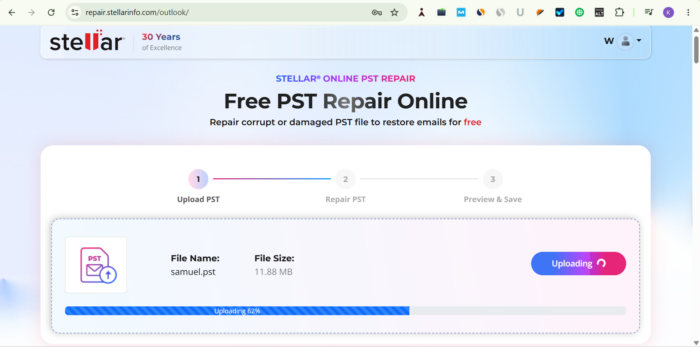
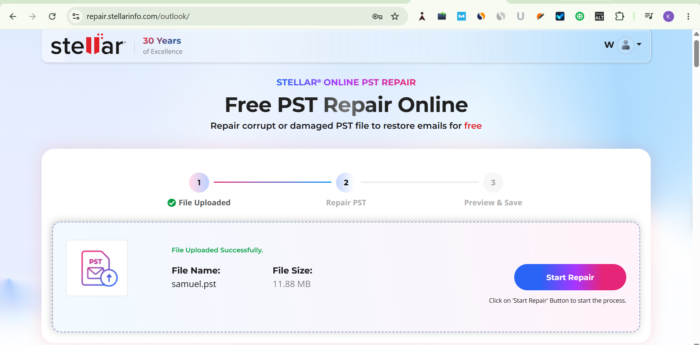
Once the upload finishes, Stellar’s servers take over. The repair runs automatically — you don’t tune anything, you don’t pick a scan mode. On a healthy connection and a moderately damaged file under a gigabyte, most repairs finish in under 15 minutes. Heavier corruption or a slower link stretches that out.
When the repair completes, you get a summary of your mailbox structure and items count : the recovered folder tree (Inbox, Sent Items, Contacts, Calendar, and so on) with item counts against each.
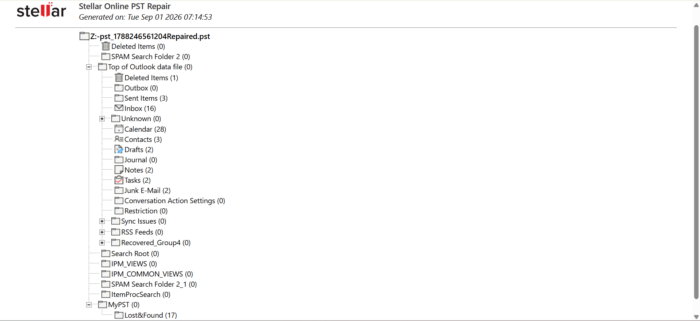
You can see how much came back before you commit. What you cannot do is open individual emails to spot-check them in the browser. The preview is structural, not content-level. That is the main compromise of the online workflow.
If the numbers look right, you download the repaired PST and open it in Outlook. Done.
What it costs and what you get
The free tier handles one PST file up to 500 MB. Beyond that, Premium pushes the limit to 5 GB at $29.99 per file — a pay-as-you-go model, not a subscription.
Uploaded files are deleted automatically: 24 hours after processing on the free tier, 48 hours on Premium. The repair itself runs without human review.
Where it works well
- One-off situations. If you rarely deal with PST corruption and just need this file back, you don’t need to install anything.
- Older or slow hardware. The heavy lifting happens on Stellar’s servers, so your machine’s specs don’t matter.
- No IT skill required. The interface is genuinely idiot-proof.
Where it strains
- Anything over 5 GB is out of scope.
- The structural-only preview means you can’t verify individual messages before you download.
- Multi-file jobs get expensive fast at $29.99 each.
- You need a stable connection long enough to upload the full file. On a slow line, a 3 GB PST takes real time.
Stellar Repair for Outlook (Desktop): the local Windows application
The desktop tool is the older and heavier of the two. It also does more.
Installation
The installer is under 30 MB. Download, run it, click through — you’re inside the app in well under a minute. It ships in three editions:
| Edition | Annual | Lifetime | Key extras |
| Professional | $79 | $99 | Core repair, preview, and all file-level export formats (PST, MSG, EML, RTF, HTML, PDF) |
| Technician | $149 | $249 | Everything in Professional, plus direct export to Microsoft 365 and Live Exchange, and PST split and compact |
| Toolkit | $199 | $299 | Everything in Technician, plus PST merging and migration from Gmail and Yahoo mailboxes |
You can install and scan for free — the trial shows you what’s recoverable — but saving requires a licence.
The process, start to finish
On launch, the app asks whether it should list your configured Outlook profiles automatically or let you browse to a PST manually.
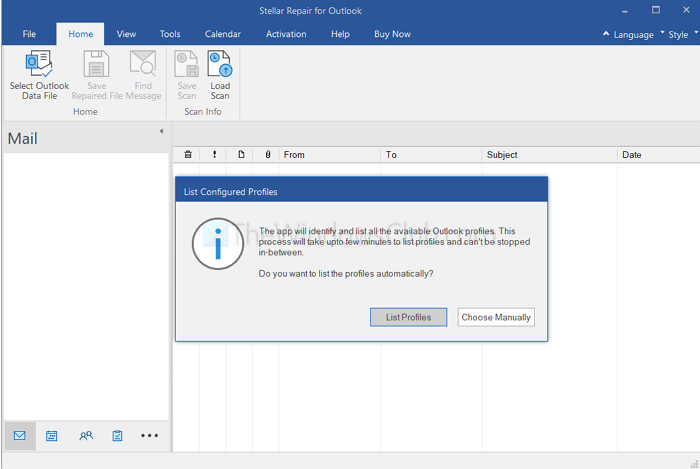
The List Profiles option is useful when Outlook itself is broken and you don’t remember where the PST lives. If you already know the path (a recovered file, a file someone handed you), the manual browse is a click faster.
Point it at the corrupt file, hit Repair, and the scan begins.
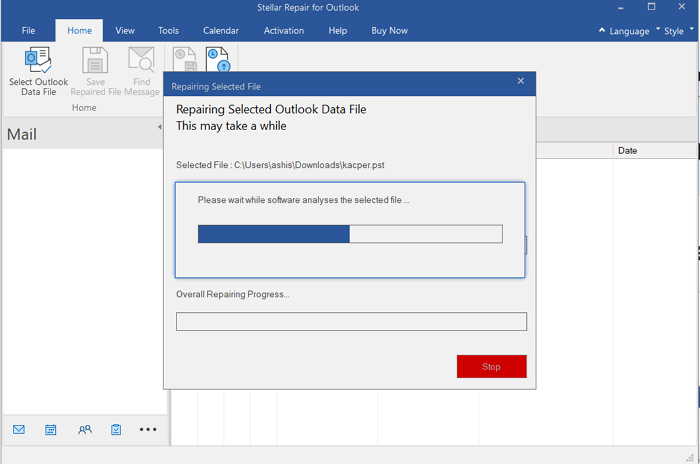
The repair is a two-phase operation: an initial analysis of the file structure, then the actual mailbox rebuild. Progress bars for both are visible throughout. On a 2 GB PST with moderate corruption, expect several minutes. Larger and more damaged files scale up from there.
When the scan finishes, the tool opens the recovered mailbox in a preview that mirrors Outlook’s own layout.
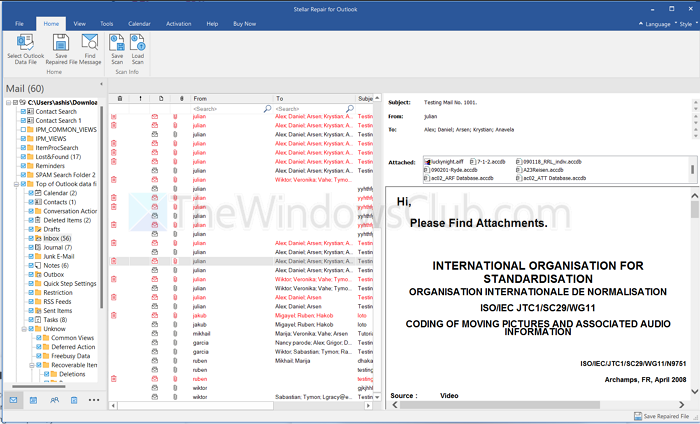
This is the strongest single feature the desktop tool offers. You get the folder tree on the left with item counts, the message list in the middle, and a full reading pane on the right — including original formatting, working hyperlinks, and openable attachments. Calendar entries render visually. Contacts, notes, and tasks appear in their own views.
Two details matter here:
- Deleted items are flagged separately. Anything Stellar recovered from the file’s deleted store is marked, so you can decide whether to include it in the export rather than having it quietly reappear in Inbox.
- The scan is resumable. You can save the scan state as a small .DAT file, close the app, and reload it later to save without re-scanning.
Saving and exporting
Save the repaired data as a fresh PST for Outlook — that’s the default. Beyond PST, Professional also exports individual items as MSG, EML, RTF, HTML, or PDF.
Technician adds direct export to a Microsoft 365 or Live Exchange mailbox, which is what turns this into a mailbox-migration tool rather than just a repair tool. It also adds split and compact operations for oversized PSTs.
Toolkit adds PST merging and migration from Gmail or Yahoo mailboxes.
Where it works well
- Files over 5 GB, or with no known size. There is no cap.
- Severe corruption where the online tool times out or refuses the file.
- Environments with no reliable internet, or where the mailbox is sensitive and shouldn’t leave the machine.
- Anyone repeatedly dealing with PST issues — support desks, migration consultants, IT teams. The Technician edition pays for itself the first time you need to move a repaired mailbox straight into Microsoft 365.
Where it strains
- You need a working Outlook install on the same machine for the final save-and-open step.
- The interface is functional rather than modern. It’s clearly a mature Windows tool, not a redesigned one.
- Lifetime pricing looks fair; annual pricing adds up quickly if you only need it once.
Online vs Desktop: which one fits which scenario
Both tools use the same repair engine. What separates them is the surrounding workflow. The right choice depends less on which is “better” and more on what you’re actually doing.
| Scenario | Better fit | Why |
| Single corrupted PST under 500 MB, one-time job | Online (free) | No install, no cost, done in the browser |
| PST between 500 MB and 5 GB, one-off | Online (Premium) | $29.99 is cheaper than a desktop licence for a single job |
| PST larger than 5 GB | Desktop | Online tool will not accept the file |
| Severely corrupted file the online tool refuses | Desktop | Local repair engine has no upload timeout to hit |
| Old or slow PC | Online | Repair runs on Stellar servers, not yours |
| Sensitive mailbox that should not leave the network | Desktop | File never uploads anywhere |
| No stable internet available | Desktop | Fully offline once installed |
| Recurring PST work: support, IT, migrations | Desktop, Technician or Toolkit | Direct export to 365 and Exchange, split, compact, merge |
| You just want it working in Outlook fast | Online | Fewer decisions to make |
One line if you want it: the online tool is the throwaway option, the desktop tool is the workshop.
Final verdict
Both tools are meaningfully better than scanpst.exe. If your file matters, either one will get you further than the built-in utility.
Between the two: Free Online PST Repair by Stellar is the right choice for the common case — a single file, a routine corruption, a user who doesn’t want to install another Windows app. It’s fast, cheap for one-off use, and asks nothing of you beyond an upload.
Stellar Repair for Outlook is the right choice the moment the job gets serious. Large files, heavy corruption, sensitive data, or anything you’ll be doing again next month — the desktop tool’s preview, export flexibility, and offline operation earn their price. If you’re an IT admin or you handle mailbox migrations, the Technician edition is the version that actually matters.
The mistake would be picking the desktop tool for a one-off 200 MB repair, or reaching for the online tool for a 12 GB Exchange-bound migration. Match the tool to the job and both are strong.

Leave a Reply