
I record almost every client call, interview and long voice memo I take, and after years of doing it, here is the thing nobody selling a transcription app will tell you: the transcription was never the hard part. Modern engines handle accents, crosstalk and hour-long recordings well enough. The accuracy war is mostly over.
The two places audio-to-text actually breaks are on either side of the transcription: the audio you feed in, and what you do with the text that comes out. Most guides get this backwards, spending hundreds of words comparing engines and one line on filing. This one runs the other way. We will still cover the tools on Windows, built-in dictation and dedicated AI converters, and where each earns its place. But the argument underneath is simple: the tool in the middle matters least, and the two habits around it matter most.
Turn Windows Audio into Searchable Notes & Meeting Summaries
Everyone wants to argue about which engine is most accurate. Almost nobody fixes the input, which is where accuracy is actually won or lost. No converter can transcribe cleanly what it cannot hear cleanly, and the laptop lid microphone is the worst offender most people never think to replace.
The cheapest accuracy upgrade is not a tool. It is a $20 microphone
That built-in mic sits far from your mouth and inches from the fan. It picks up room echo, keyboard clatter and hardware noise, and then you blame the AI for the garbled result. An inexpensive external USB mic, or even a decent headset with a boom, fixes more transcription errors than switching tools ever will. Keep it within arm’s length and speak across it, not straight into it, to kill the popping.
- Silence notifications, or turn on Focus Assist, so a chat ping doesn’t land mid-sentence and get transcribed as a word.
- Record in the quietest room you have, away from the AC and the window.
- Do a ten-second test and play it back before anything that matters. Half the “this tool is bad” complaints I hear turn out to be a muted mic or the wrong input device.
Clean input pays twice: a better transcript on the first pass, and far less time fixing it afterward. This is true of Windows dictation and of any paid service like Summary AI alike. Every one of them is only as good as the audio you hand it.
3 ways to capture speech, & the one most people use for the wrong job
Audio-to-text hides three different workflows. The mistake I see constantly is people picking the wrong one for the moment, usually by trying to live-dictate a conversation they should have simply recorded.
- Live dictation. You talk, words appear, you fix them on the spot. Right for an email, a quick note, a form field. Wrong for anything where you also need to think.
- Record first, convert later. Capture in one step, transcribe in another. This is the one for meetings, interviews and lectures, because it lets you stay in the conversation instead of babysitting a cursor.
- Continuous capture. A tool sits on a whole call and hands back a transcript, often with speaker labels and a summary. Built for the hour-long recordings that live dictation mangles.
If you take one thing from this section: stop live-dictating meetings. You cannot both participate and proofread. Hit record, be present, and convert afterward.
For half of what you do, stop paying for transcription
Before you buy anything, use what is already on the machine, because for a surprising share of everyday tasks it is enough.
Voice typing is Windows’ built-in dictation. Press Windows + H in almost any text field and your speech appears with automatic punctuation, across the browser, Word, a chat box, anywhere. It is quick and genuinely good for short bursts.
Sound Recorder (the modern Voice Recorder) handles capture, saving a clean file you can transcribe later with something heavier.
The catch: by default, voice typing sends your speech to Microsoft’s cloud for recognition, though you can switch to on-device recognition in its settings. What it will not do is label speakers, summarize, or transcribe a file you already have. So here is the unpopular part: for notes, emails and quick captures, paying for a transcription tool is money wasted. Reserve the paid tools for the job they are genuinely better at, which is the next section.
Where a quality converter actually earns its keep
A browser-based audio to text converter can help you turn recorded meetings, interviews, and voice notes into searchable text without installing additional desktop software. These tools are particularly useful for longer recordings where you may need speaker labels, timestamps, or summaries alongside the transcript.
Summary AI is one example of a browser-based transcription tool. You upload a recording, and the service offers features such as language detection, speaker separation, timestamps, and an editable transcript. It will also generate a structured summary and action items from the same file, which is the point at which audio to text stops being a typist and starts being a meeting assistant.
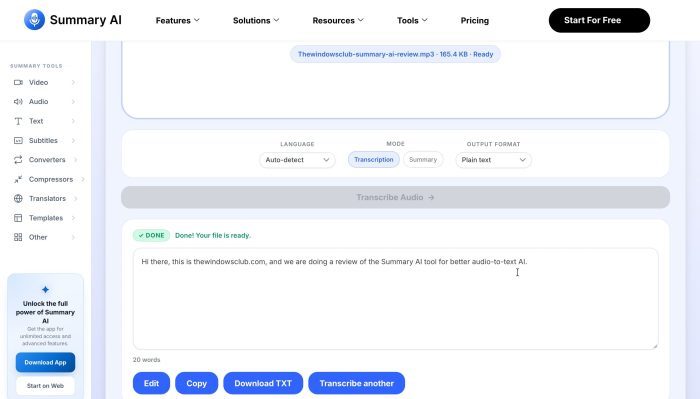
On the numbers, the service lists its own figures: up to 99% accuracy depending on audio quality, more than 120 languages, and large file uploads, with export to DOCX, TXT, PDF, SRT and VTT. Those are the vendor’s claims, not independent measurements, so treat them as a starting point and test any tool on your worst recording, not your cleanest. That is the test that tells you whether a paid converter is buying you anything.
The question I ask before I upload anything
No tool wins on every axis, and the honest trade-off is this:
| Factor | Built-in Windows dictation | Browser-based AI converter |
| Ease of use | Instant, nothing to set up | Upload and wait a few minutes |
| Accuracy on hard audio | Basic; struggles with noise and crosstalk | Strong; handles accents, jargon, speaker labels |
| Extras | None | Summaries, timestamps, action items, translation |
| Privacy | Can run on-device; cloud by default | Audio is uploaded to a cloud service |
The privacy row is the one that has stopped me more than once. Windows voice typing can keep processing on your PC if you enable on-device recognition; by default it uses Microsoft’s cloud. A third-party converter, by design, always sends your audio to someone else’s servers. For a podcast or a public talk, no concern at all. For a client call under NDA, it is a real decision.
So before I upload anything sensitive, I ask one question: would I be comfortable if this recording leaked? If the answer is no, it stays local, full stop. If you do go cloud, check how the service handles data, encryption in transit and at rest, retention, and whether you can delete a file. Summary AI, for instance, says audio and transcripts are encrypted during upload, processing and storage. Match the tool to the sensitivity of the content, not the other way around.
The part everyone skips: transcripts that rot in a folder
Here is where most people’s audio-to-text effort quietly dies. They capture the call, generate a clean transcript, drop it in Downloads, and never open it again. A transcript you cannot find in six months is barely better than no transcript. This is the downstream failure I promised at the top, and it is the one no tool can fix for you.
The fix is boring and it works: a consistent filing system, decided once.
- Folders by project or client, not one swelling “Transcripts” pile.
- Filenames that lead with the date in sortable form, plus a short description, for example 2026-03-10 client kickoff call. Dated, descriptive names sort themselves and tell you what a file is without opening it.
- Tags where your tool or OneDrive supports them, so one note can live under more than one theme.
Decide where the master copy lives, too. Some tools let you store and search transcripts in their own interface, which is fine if that is where you work. Others are best paired with OneDrive, so notes sit with the rest of your documents and back themselves up.
Two habits keep the system alive: a weekly ten-minute pass to rename and file anything loose before it piles up, and at least one backup so a dead laptop never means dead notes. Export to editable formats like TXT or DOCX, not locked ones, because the transcript you cannot edit is the transcript you will not use.
We also see some FAQs asked by users in discussion forums, like below.
What is the most reliable way to capture clean audio from a laptop?
Fix the hardware and the room before anything else. An external USB mic, or a good headset with a boom, beats the laptop’s built-in mic almost every time. Sit close, silence notifications and background apps, and record a ten-second test to check levels before an important call. Cleaner input means a better transcript and far less correction, whatever tool you use.
Should I use live dictation or record first and convert later?
Live dictation for quick, low-stakes text you can watch and fix as it appears: emails, notes, a form. Record-then-convert for meetings, interviews and lectures, where you need to be in the conversation, not proofreading it. Most people should use both, and should stop trying to live-dictate meetings.
How do I keep converted text findable months later?
Folders by project or topic, and filenames that start with the date plus a short description, such as 2026-03-10 client kickoff call. Store and search in the tool if that is where you live, or keep everything in OneDrive alongside your other files. Then a weekly cleanup, so it never turns into an unsearchable heap.
Conclusion
Voice is now a primary way we put information into a computer, and Windows is well set up to catch it. But the win was never going to come from the engine. For most people the right setup is two tools, not one: built-in dictation for quick, private, throwaway text, and a dedicated converter for the long, crowded, important recordings that earn it.
Everything else is the two bookends. Clean audio going in, from a real mic in a quiet room, and a filing system coming out, with dated names and a backup you trust. Get those right and your recordings stop being a graveyard of files you never reopen, and start working like notes somebody took for you. The transcription in the middle, the part everyone obsesses over, turns out to be the easy twenty percent.

Leave a Reply