
Every system-wide equalizer on Windows has the same flaw, and it is not a technical one. You spend twenty minutes building a curve that finally makes your headphones sound right. Then a call comes in, and your colleague’s voice arrives through a filter you built for bass guitars. So you switch the equalizer off. And then you forget to switch it back on.
That is the problem Equalizer & Surround SoundFx is built around. It is a free Microsoft Store app that does the usual things – a 32-band equalizer, virtual surround sound, a headphone correction library – but the feature worth writing about is the one that decides which applications get processed at all. Everything else on your system plays untouched.
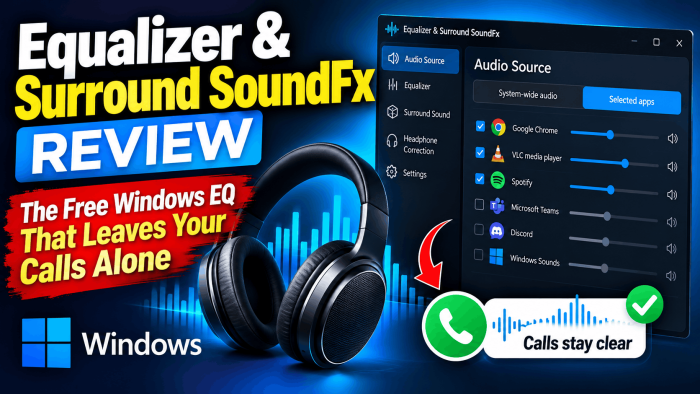
Equalizer & Surround SoundFx Review
This review covers version 1.0.30, released in October 2026, and focuses on what that one feature changes day to day, where the app’s architecture limits it, and why it is harder to argue against than the paid alternatives from Dolby and DTS.
Audio Source: the feature nothing else on the Store has
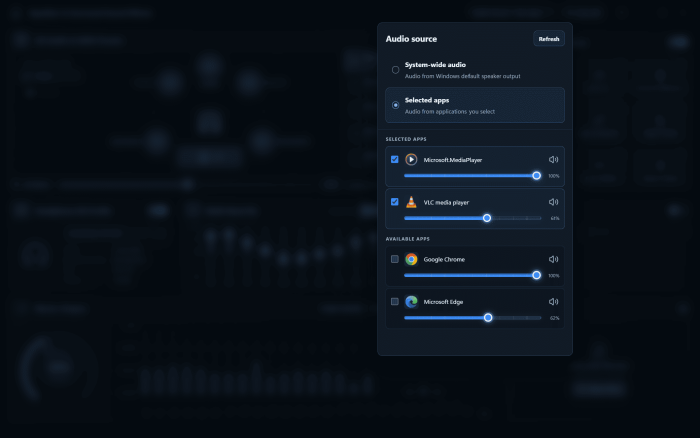
Open Audio Source from the dashboard’s top bar and you get two choices. System-wide audio behaves like every other equalizer: it processes whatever Windows sends to the default output. Selected apps is the interesting one. The panel lists every application currently playing audio, you tick the ones you want processed, and the rest are left alone.
In practice that means VLC and your browser get the full EQ and spatial treatment while Teams, Discord voice and Windows notification sounds stay flat and intelligible. No toggling. No forgetting to toggle back.
One practical note. Applications appear in the list only once they are actively playing audio, so start playback before you go looking for something. The selection is not permanent – you can change which apps are processed whenever you like, and the panel gives each one its own volume slider while you are in there.
This works because of an architectural choice worth understanding, since it explains both the feature and the app’s main limitation. Classic Equalizer APO – the GPLv2 project this app is often confused with – installs itself into the Windows system-effect stack, underneath every application. It cannot be selective, because at that layer there is nothing to be selective about. This app instead installs a virtual playback device called 3D SoundFx and owns the route:
Media app → 3D SoundFx → EQ and spatial effects → Target speaker
Because it owns the route rather than the device layer, it can forward some applications into the effects chain and let others pass straight through to your hardware. Dolby Access, DTS Sound Unbound and the OEM audio suites from Realtek and Nahimic are all system-wide by design. As far as the Microsoft Store catalogue goes, this selectivity is unique.
Setup, and the trade-off that comes with it
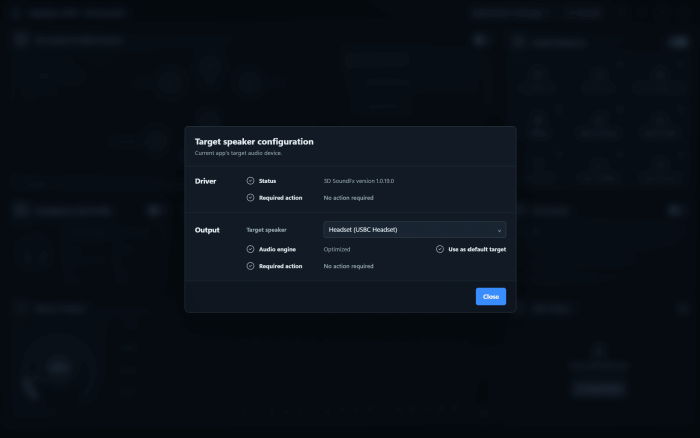
This is the one place the app asks something of you. It installs a driver and takes over your default playback device, which is more intrusive than most Store apps and worth knowing before you start:
- Install the 3D SoundFx driver. The app prompts on first launch and usually asks for a restart. Nothing works until this is done.
- Let it become the default playback device. The installer sets Speakers (3D SoundFx) as the Windows default. If a reconnected headset steals the default later, you reselect it here.
- Choose your Target speaker. The physical output you actually listen through. Audio entering 3D SoundFx passes through the effects chain and leaves here.
If you have ever installed classic Equalizer APO and picked the wrong device in its Configurator, you will appreciate that this is three guided steps with status shown on screen, rather than a checklist you have to get right blind. Tray alerts flag driver or audio-route problems instead of leaving you with silence and no explanation.
The trade-off. Because everything runs through a virtual device, anything that bypasses shared-mode Windows audio bypasses this app too. WASAPI exclusive mode and ASIO paths are not intercepted. If you run a DAW, or a bit-perfect music player that grabs the device exclusively, your signal chain never touches any of this.
That is a real limit, not a quibble, and it is the reason a measurement-driven listener should stay with classic Equalizer APO. It is also stated plainly in the developer’s own FAQ, which is more candour than this category usually offers – Dolby and DTS both market spatial audio without ever explaining which audio paths they can and cannot reach.
The three parts that carry the weight
Strip away the panels and three things decide whether this app earns its place: the equalizer, the headphone correction, and the surround engine.
The equalizer
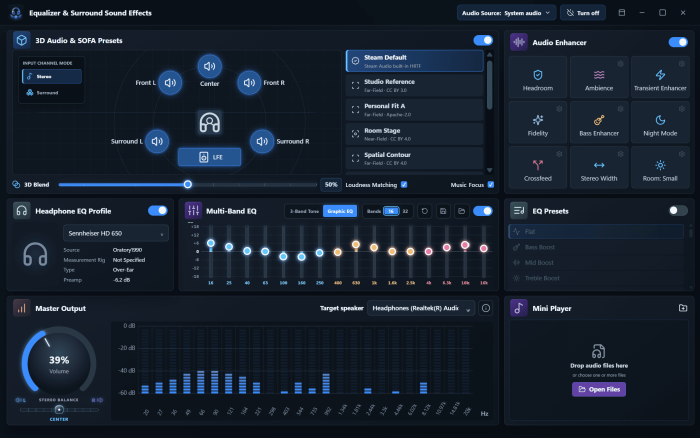
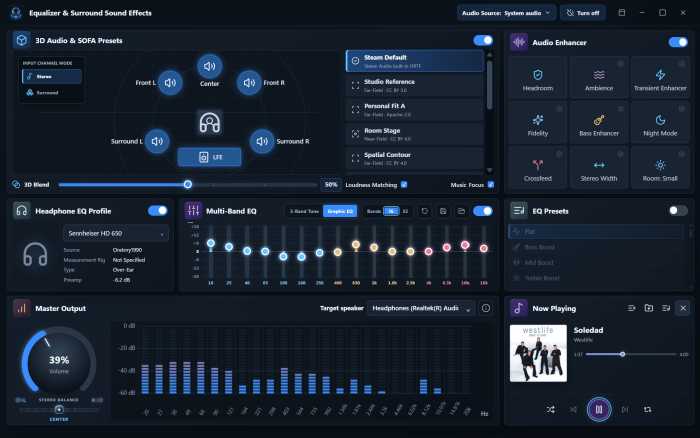
Three tiers of control, which is the right call for an app serving both a casual listener and someone who reads frequency response graphs. Twenty-eight presets (Flat, Bass Boost, Vocal, Rock, Piano, Orchestral and more) cover the people who want to pick one and stop thinking. A 3-Band Tone mode handles quick corrections. The Graphic EQ offers 16- and 32-band views at up to 18 dB of cut or boost per band.
The 16-band view edits the same underlying 32-band bank rather than running a second engine, so switching views does not discard your curve. Double-clicking resets a single band; one control resets the whole curve. Small things, but they are the difference between an equalizer you keep adjusting and one you set once and abandon.
Boost six bands by 12 dB and any equalizer drives the output into the ceiling. A Headroom control in the Audio Enhancer panel, plus internal limiting, keeps an aggressive bass curve cleaner than it has a right to be. The developer is careful here, describing this as reducing distortion rather than eliminating it, and that hedge is accurate.
The developer is careful not to oversell this, describing headroom management and limiting as reducing distortion rather than guaranteeing its absence. That hedge is worth taking at face value: push hard enough on an already-loud source and you will still hear it break up.
Headphone correction, and whether your model is in there
The catalogue holds 6,033 profiles, each with measurement source, measurement rig, headphone type and a recommended preamp value. The Sennheiser HD 650 entry in our screenshots, for example, carries Oratory1990 measurements and a -6.2 dB preamp.
The design decision that matters: correction runs on an independent filter bank, alongside whatever you have set in Preset, 3-Band Tone or Graphic EQ. Your headphones get corrected toward a neutral baseline and your taste curve sits on top, rather than the two fighting each other. Most apps in this category make you choose one or the other.
Worth being precise about the number, since the developer is: 6,033 counts profiles, including model variants and separate measurements, not 6,033 distinct headphones. It is still comfortably the largest correction library bundled free with a Store app – DTS Sound Unbound ships around 500 tunings, and Dolby Access offers sound modes rather than per-model correction at all.
After installing, the first thing to do is search for your headphones. The library’s value to you depends entirely on whether your model is in it, and that is a thirty-second check before you invest any time in building a curve on top.
Virtual surround
The 3D Audio panel uses HRTF processing to place a virtual speaker stage around you – Front L, Center, Front R, Surround L, Surround R and LFE, laid out visually on the dashboard. Eleven HRTF profiles are offered, including Steam Default, Studio Reference, Personal Fit A, Room Stage and Spatial Contour, each labeled with its measurement type and license.
The control that makes this usable is 3D Blend, a 0–100% slider between dry stereo and full spatialization. Most virtual surround is an on/off switch where “on” is too much. Loudness Matching keeps A/B comparisons honest by preventing one setting from simply sounding louder, and Music Focus softens the effect for two-channel material.
No ear scanning and no head tracking. These are preset profiles you choose from, not personal measurements, and the developer says so rather than implying otherwise.
How convincing the effect is depends on the source material, your headphones, the profile you pick and your own ears – the developer says as much, which is unusually candid for a category that normally promises a cinema in your head. Start at a low blend and work up rather than switching it fully on and judging it from there.
Everything else
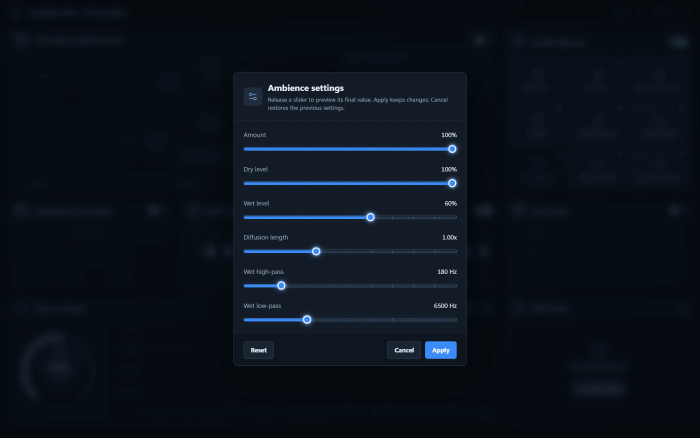
The Audio Enhancer panel adds Dynamic EQ, Fidelity, Bass Enhancer, Transient Enhancer, Night Mode, room ambiance in three sizes, plus Crossfeed and Stereo Width as alternatives to full spatial imaging. Several open their own settings dialogs- Ambiance exposes Amount, Dry level, Wet level, Diffusion length and wet high-pass and low-pass frequencies, with live preview.
Crossfeed is a well-judged inclusion. It is the classic fix for the exaggerated hard-panned separation older recordings produce on headphones, and it rarely appears in consumer software.
Night Mode is the other one worth knowing about. It narrows the gap between quiet dialogue and loud effects, the specific problem that makes people reach for the volume control every ninety seconds during a film.
Version 1.0.30 closes the gap that mattered most
Until this October, the app had an obvious hole: you could build a careful 32-band curve and had no way to keep it. Change presets and the work was gone. Version 1.0.30 fixes that, along with two smaller requested fixes.
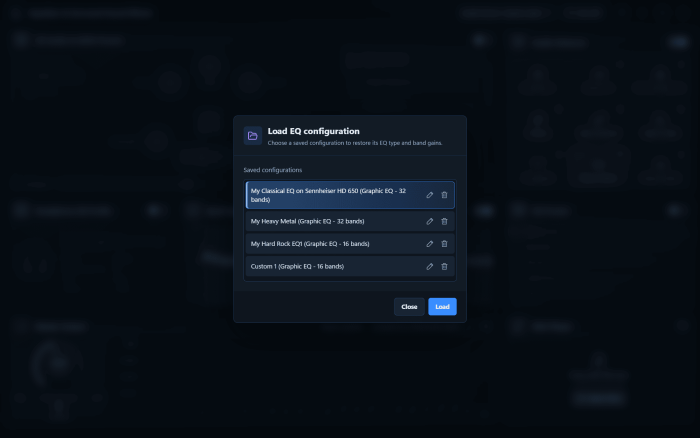
- Saved EQ configurations. Name a curve, store it, recall it later. The Load EQ configuration dialog lists each one with its EQ type and band count – My Classical EQ on Sennheiser HD 650 (Graphic EQ – 32 bands) – and entries can be renamed or deleted in place. This is the change that moves the app from “interesting” to “usable daily,” because a 32-band curve is twenty minutes of work and nobody rebuilds that twice.
- Left and right channel balance. A Stereo Balance slider with a centre detent now sits beside the volume dial in Master Output. Windows buries its own balance control several menus deep, and for anyone with uneven hearing between ears – which is common and under-served – having it on the main screen is a genuine accessibility improvement rather than a feature-list entry.
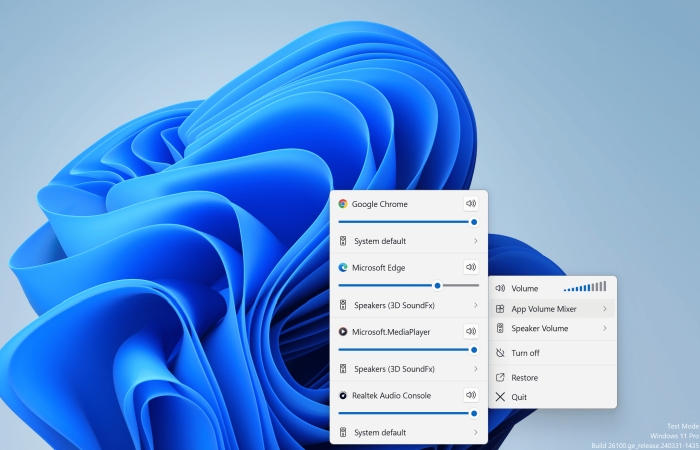
- Volume control from the tray icon. The tray menu now opens straight into App Volume Mixer and Speaker Volume submenus. The first gives every running application a slider, a mute button and an output-device picker. The second lists every active playback device, including the 3D SoundFx virtual speaker, with its own slider. Routine adjustments no longer mean opening the dashboard.
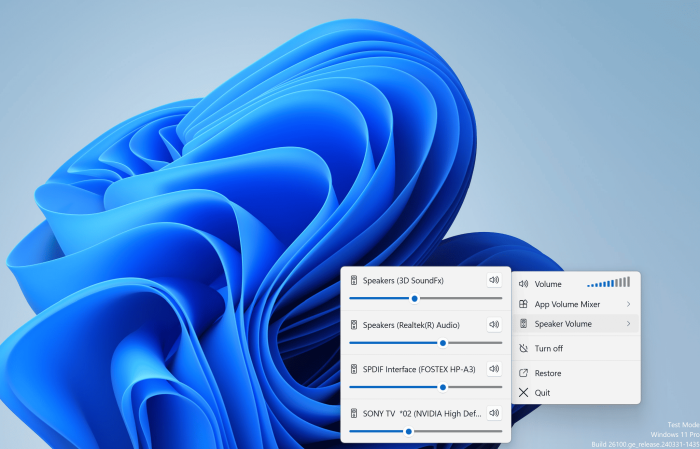
Of the three, saved configurations change how the app fits into a day. The other two remove friction; this one removes the reason people abandoned it.
What you would otherwise be paying for
The Windows audio-enhancement market splits three ways: the free open-source tool that expects you to configure it, the paid codec licenses from Dolby and DTS, and whatever your laptop vendor preinstalled. This app tries to do all three at once, and it mostly succeeds.
| Equalizer & Surround SoundFx | Equalizer APO + Peace | Dolby Access | DTS Sound Unbound | |
| Price | Free | Free, GPLv2 | Paid licence for Atmos for Headphones | Paid package; DTS:X sold separately |
| Graphic EQ | 16 / 32-band, ±18 dB | Unlimited parametric filters | None | None |
| Virtual surround | HRTF, 11 profiles, 0–100% blend | Not built in | Dolby Atmos | DTS Headphone:X |
| Headphone correction | 6,033 profiles | Via imported REW / AutoEq files | Sound modes only | ~500 tunings |
| Process only chosen apps | Yes | No, device-level | No | No |
| Windows ARM64 | Yes | No official build | Yes | Yes |
Four things fall out of that table, and two of them are the reason this review exists.
You are being asked to pay for one feature elsewhere. Dolby and DTS sell a spatial renderer and a modest headphone tuning list. No equalizer. No per-app control. Both are priced in the mid-teens to around twenty dollars at list, frequently discounted, with trials. For a listener who wants virtual surround and an equalizer, buying Dolby Access plus a separate EQ tool is a strange way to spend money when one free app covers both.
The correction library is not a close contest. 6,033 profiles against DTS’s roughly 500 tunings. Classic Equalizer APO can match it, but only after you locate an AutoEq file, download it and import it correctly – which is exactly the friction this app exists to remove.
Nobody else is selective. Equalizer APO works at device level. Dolby and DTS work at the spatial-sound layer. Realtek and Nahimic control panels are system-wide by design. Processing Chrome and VLC while leaving Teams untouched is, across the Store catalogue, available here and nowhere else.
ARM64 support is quietly the most interesting line in the table. Snapdragon X Windows laptops have been shipping for over two years and the audio-utility category has barely followed them. Classic Equalizer APO has no official ARM64 build. If you bought a Windows-on-Arm machine and wanted a real equalizer, the options were thin until now. ARM64 support here is as stated by the developer; what is independently checkable is the absence of an official ARM64 build for classic Equalizer APO, which is the comparison that matters.
Where it loses is depth. Equalizer APO with Peace gives you unlimited parametric filters, VST plugin support, Room EQ Wizard integration and processing in paths this app cannot reach. For room correction with a measurement microphone, stay where you are. This app is built for listening, not for measuring.
Price and requirements
Free, with no licence purchase for the equalizer, the correction library, virtual surround or the volume controls. It runs on Windows x64 and ARM64; the Store picks the right build. If you need to check your architecture, it is under Settings > System > About > System type.
⚡ Download Equalizer & Surround SoundFx
The Microsoft Store lists it as a free download. Given that Dolby and DTS both sell their spatial audio as paid licences, it is worth checking the listing’s details pane yourself before assuming feature parity at zero cost.
The developer also publishes guides on selecting apps for processing, headphone profiles and EQ presets, and spatial audio terminology on its official website.
Who should install it, and who should not
Install it if you listen on headphones and want correction and your own EQ working together rather than in competition; if you have ever switched an equalizer off for a call and forgotten to switch it back; or if you are on a Windows ARM64 machine, where the alternatives barely exist.
Skip it if your audio runs through WASAPI exclusive mode or ASIO, if you need a separate EQ profile per application rather than per-app on or off, or if you are doing measurement-based room correction. Classic Equalizer APO with Peace remains the better instrument for that work, and nothing here changes that.
For everyone in between – which is most people – the cost is a driver install and one restart. That is a small price for finally giving Windows the equalizer it has never shipped.
We think this is the most complete free audio toolkit on the Microsoft Store, and the per-app Audio Source feature is a real first rather than a marketing line. We would like to hear your feedback in the comments.
Equalizer & Surround SoundFx
Overall
-
Per-App Audio Processing
(5)
-
32-Band Graphic Equalizer
(5)
-
Headphone Correction Library
(5)
-
Virtual Surround Sound
(4)
-
Saved EQ Configurations
(5)
Summary
Equalizer & Surround SoundFx is a free Windows audio enhancement app offering a 32-band equalizer, virtual surround sound, headphone correction, and per-app audio controls. It includes 28 EQ presets, 6,033 headphone profiles, and support for Windows x64 and ARM64. Its main advantages are selective audio processing and extensive customization, while driver installation and limited support for exclusive audio modes are its key drawbacks.
Pros
- Free access to advanced audio enhancement features.
- Selective per-application audio processing.
- Powerful 32-band graphic equalizer with 28 presets.
- Extensive headphone correction library with 6,033 profiles.
- Virtual surround sound with adjustable 3D Blend.
- Save, rename, and reload EQ configurations.
- Supports Windows x64 and ARM64.
Cons
- Requires installing a virtual audio driver and restarting Windows.
- Does not support WASAPI exclusive mode or ASIO audio paths.
