
Managing a Windows Server environment at scale means more than reacting when things break. IT administrators need continuous visibility into server health, resource consumption, and service availability, ideally without juggling five different tools to get it. ManageEngine OpManager covers all of that from one interface, with monitoring built around the Microsoft stack rather than bolted on top of it.
What is ManageEngine OpManager?
OpManager is an IT infrastructure monitoring platform that handles servers, network devices, virtual machines, storage, and applications. In Windows environments, it connects via WMI (Windows Management Instrumentation), enabling agentless monitoring with no software to install on every server you want to monitor.
In environments with tighter firewall rules or segmented networks, a lightweight agent-based option is available too. Most teams pick whichever approach their network topology allows.
Windows Server Monitoring for IT Teams
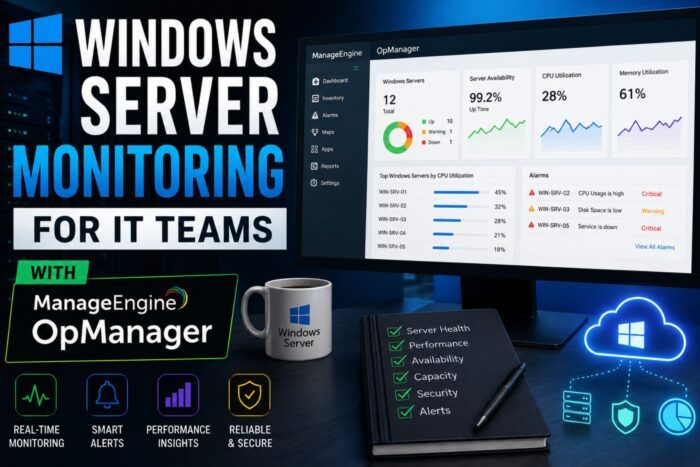
Catch resource problems before users notice
OpManager tracks CPU utilization, memory, disk I/O, and free disk space across your Windows Server fleet in real time. Administrators can set multi-level alert thresholds (Warning, Critical, and Clear) per server rather than applying blanket rules. A database server and a file server won’t have the same performance baselines, so distinguishing between them matters.
When a threshold is breached, alerts are sent via email, SMS, or via integrations with your existing ITSM platform.
Stop service failures before they become outages
OpManager monitors the state of Windows Services through the Service Control Manager, covering built-in services like IIS, DNS, DHCP, Windows Update, and Print Spooler, as well as any custom services your environment runs.
If a service stops, OpManager can automatically attempt a restart, notify the team at the same time, and then confirm whether the service actually came back up. That loop of detect, remediate, verify is useful after hours when nobody’s watching the dashboard.
Correlate events without digging through logs manually
Instead of manually digging through Event Viewer, OpManager continuously ingests Windows System, Application, and Security logs. Filters can be configured for specific Event IDs, sources, or severity levels, so you only get alerted to what matters.
The practical value is correlation. A CPU spike that lines up with a wave of Application Error events from a specific service tells a much clearer story than either signal alone.
Keep application workloads within expected bounds
OpManager can track individual processes on Windows Servers, monitoring CPU and memory consumption per process and alerting when usage exceeds defined limits or when a process stops responding. Useful for application teams who need to confirm their workloads remain within expected bounds without manually logging into servers.
Protect the services your organization runs on
Active Directory and Exchange are two areas where problems tend to radiate quickly across an organization, so OpManager monitors both with some specificity.
For Active Directory: domain controller availability, LDAP response times, replication latency between DCs, and Kerberos authentication performance. Replication failures across sites show up quickly, which matters because they often cause authentication and group policy issues before anyone realizes the root cause.
For Exchange: Mailbox database availability, mail queue depths, transport service health, and DAG replication status. Administrators get ongoing visibility without needing to connect to individual servers to check the stats they need.
⚡ SERVER MONITORING FOR IT TEAMS
Manage physical and virtual infrastructure from one place
OpManager extends monitoring to Hyper-V environments, covering both hypervisor hosts and individual VMs from a single dashboard. Tracked metrics include VM power state, CPU and memory allocation versus actual consumption, virtual disk I/O, and snapshot accumulation. Snapshots in particular are easy to let pile up, and they’re a common cause of degraded Hyper-V performance that doesn’t always show up obviously until it’s already a problem.
The combined view across physical and virtual infrastructure is also useful for capacity planning, making it easier to spot over-provisioned VMs or hosts approaching their resource ceiling before performance is affected.
Give every stakeholder the view they actually need
Dashboards are customizable by role. A live operations view for an on-call team looks different from a capacity planning view for infrastructure architects or an availability summary for management. OpManager supports all three without requiring separate tools.
Reports cover availability, performance trends, capacity utilization, and SLA compliance. They can be automatically scheduled and emailed to stakeholders, reducing the manual work of compiling monthly infrastructure summaries.
Fit OpManager into the tools your team already uses
OpManager connects to ServiceNow, Jira, Zendesk, Microsoft Teams, and Slack. When an alert fires, it can open a ticket in your ITSM system, populate it with the relevant server context, and post to the appropriate team channel without manual steps in between.
Up and running in 30 minutes, scalable beyond that
Installation runs as a Windows service. Auto-discovery scans your subnet and pulls devices into the inventory, with WMI credential profiles handling monitoring configuration rather than per-device setup. Most teams are up and running within 30 minutes.
For larger or multi-site environments, OpManager supports a distributed architecture where probe servers in remote locations feed into a central OpManager instance, so everything is visible in one place regardless of geography.
Pricing is tiered across Free (up to 3 devices), Standard, Professional and Enterprise editions, with add-on bundles for network flow analysis, configuration management, and storage monitoring.
Who gets the most out of OpManager
OpManager tends to be a good fit for IT teams that want server, network, and VM monitoring in one place rather than stitched together from separate tools. It’s also used by MSPs managing multiple client environments, where the distributed monitoring architecture and multi-tenancy support matter.
Key takeaway
OpManager is a solid monitoring platform for Windows environments. It handles Microsoft-specific monitoring across Active Directory, Exchange, Hyper-V, and Windows Services without requiring a separate specialist tool for each. The alerting and automation features are mature enough to noticeably reduce manual response workload, and the ITSM integrations mean it fits into existing workflows rather than sitting alongside them.
A free trial is available on the ManageEngine OpManager website.

Leave a Reply